
 Nazmoon Munny 14 min read
How to set up a WooCommerce events calendar (2026)
Set up a WooCommerce events calendar step by step: install Evenzo, create an event, attach tickets, pick a calendar view, and add recurring dates.
Before this guide went up, I set up Evenzo, the free event plugin we build, on a test store and went through every step below: four December events, a weekly Friday series, their ticket products and a calendar page. Then I compared each label with the plugin’s code.
One setting didn’t hold up. The Default Calendar View dropdown under Events > Settings > Display offers Month, Week, Day and List. It saves your choice, and nothing in the plugin reads it.
The calendar view is set on the block or the shortcode instead. Without that check, this guide would have told you to use a dropdown that does nothing. So every menu name, setting label, block name and shortcode below comes from version 1.1.1, as it is on WordPress.org.
A WooCommerce events calendar has four parts. An event post that holds the date. A WooCommerce product that sells the ticket. A block or shortcode that draws the calendar on a page. And a My Tickets tab where buyers find what they paid for.
For the wider picture (check-in, printable tickets, seating charts), see my guide to managing events in WooCommerce. This post stays on the calendar.
TLDR
Install Evenzo with WooCommerce active, create an event under Events > All Events, and sell it with a WooCommerce product that has Event Ticket checked and the event picked on its Event Ticket tab. Add the Event Calendar block or
[emwc_calendar]to any page, and choose month or list view right there. For repeat dates, set Repeat Event on the first event and link one ticket product to it.
Step 1: install Evenzo#
Install and activate WooCommerce first. Evenzo lists WooCommerce as a required plugin and needs WooCommerce 8.0 or newer.
- Go to Plugins > Add New in your WordPress admin.
- Search for “Evenzo”.
- Click Install Now, then Activate.
You now have an Events menu in the admin. Check two settings before your first event. The Default Timezone on the General tab of Events > Settings sets the zone new events start in. The Event base under Event Permalinks in Settings > Permalinks sets the URL. It’s event by default, so an event page lives at /event/your-event-name/.
The getting started docs also cover installing from a zip file.
Step 2: create the event#
The calendar only shows things that have a date, so the event comes first.
- Go to Events > All Events and click Add New Event.
- Add a title and a description.
- In the Event Settings box, set Start Date & Time and End Date & Time, or check All day event.
- Change the Timezone if this event runs somewhere other than your default.
- In the Event Location box, set Event Type to In-Person, Virtual (Online) or Hybrid (In-Person + Virtual). Then pick a Venue, add a Virtual Event URL, or both.
- Back in Event Settings, set a Capacity if places are limited and a Registration Deadline if sales should close before the start.
- Add the event to a category. Create categories first at Events > Event Categories.
- Click Publish.
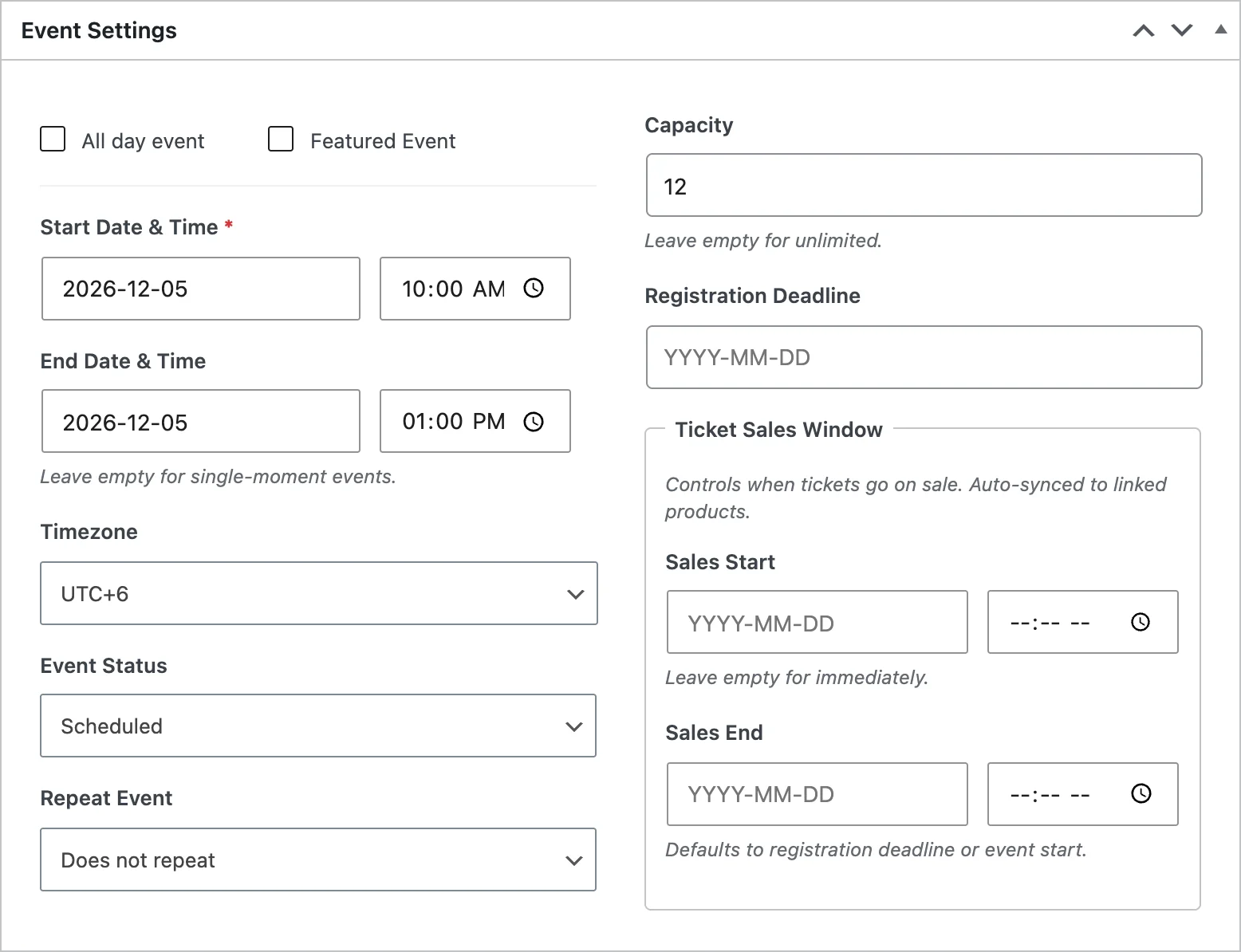
Don’t skip the category. It’s the only filter the calendar has. With workshops and concerts in separate categories, each can get its own calendar page.
Once published, the event shows on the calendar, but nobody can register until a ticket is linked to it. If plans change later, Event Status in the same box has Scheduled, Postponed, Cancelled and Sold Out. Cancelled and Sold Out events get a badge on the event archive cards.
Step 3: attach a ticket product#
This is what sets events in WooCommerce apart from a plain calendar plugin. The ticket is a normal WooCommerce product, so it sells through your checkout and the payment gateways you already use. The fastest way starts on the event itself:
- Open the event and click + Add New Ticket in the Event Tickets box. A new product opens with Event Ticket checked and your event already picked.
- Name the product, for example “General Admission”, and set the price.
- Open the Event Ticket tab in Product data.
- Set Minimum per order, Maximum per order (0 means no limit) and Persons per ticket if one ticket admits a group.
- Set a Sales start date and Sales end date if sales run on a window.
- Check Collect attendee info if you need details for each ticket holder, then add fields with + Add Field.
- Click Publish.
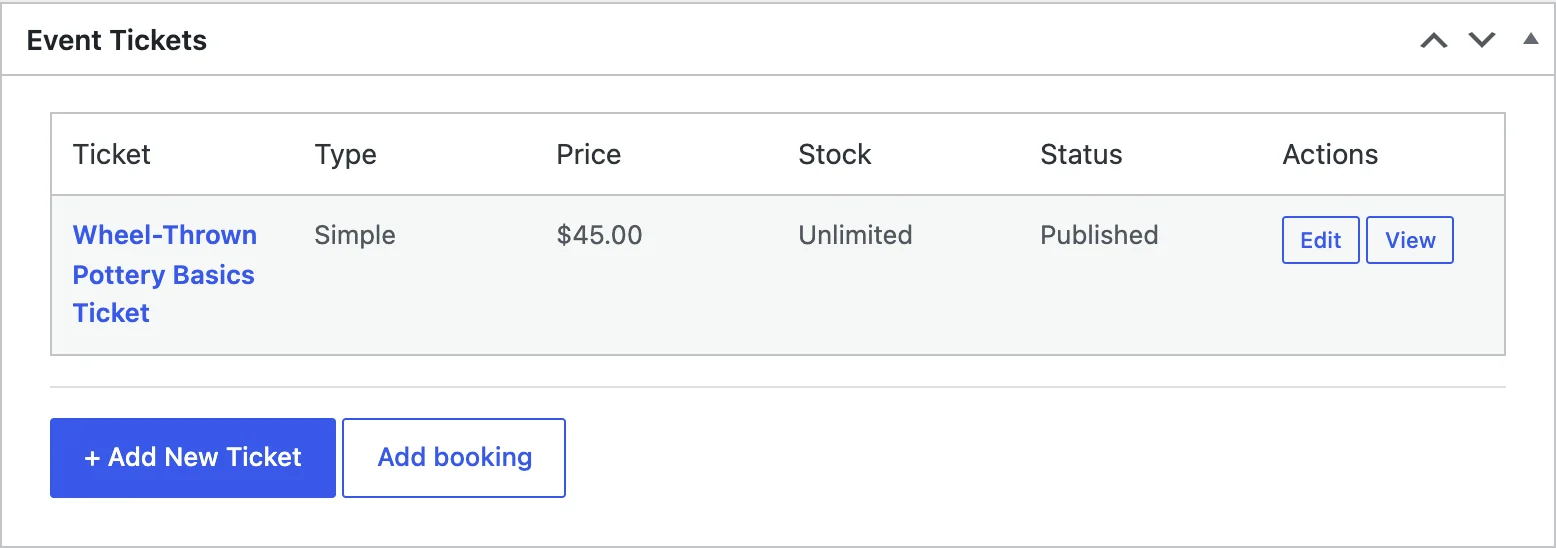
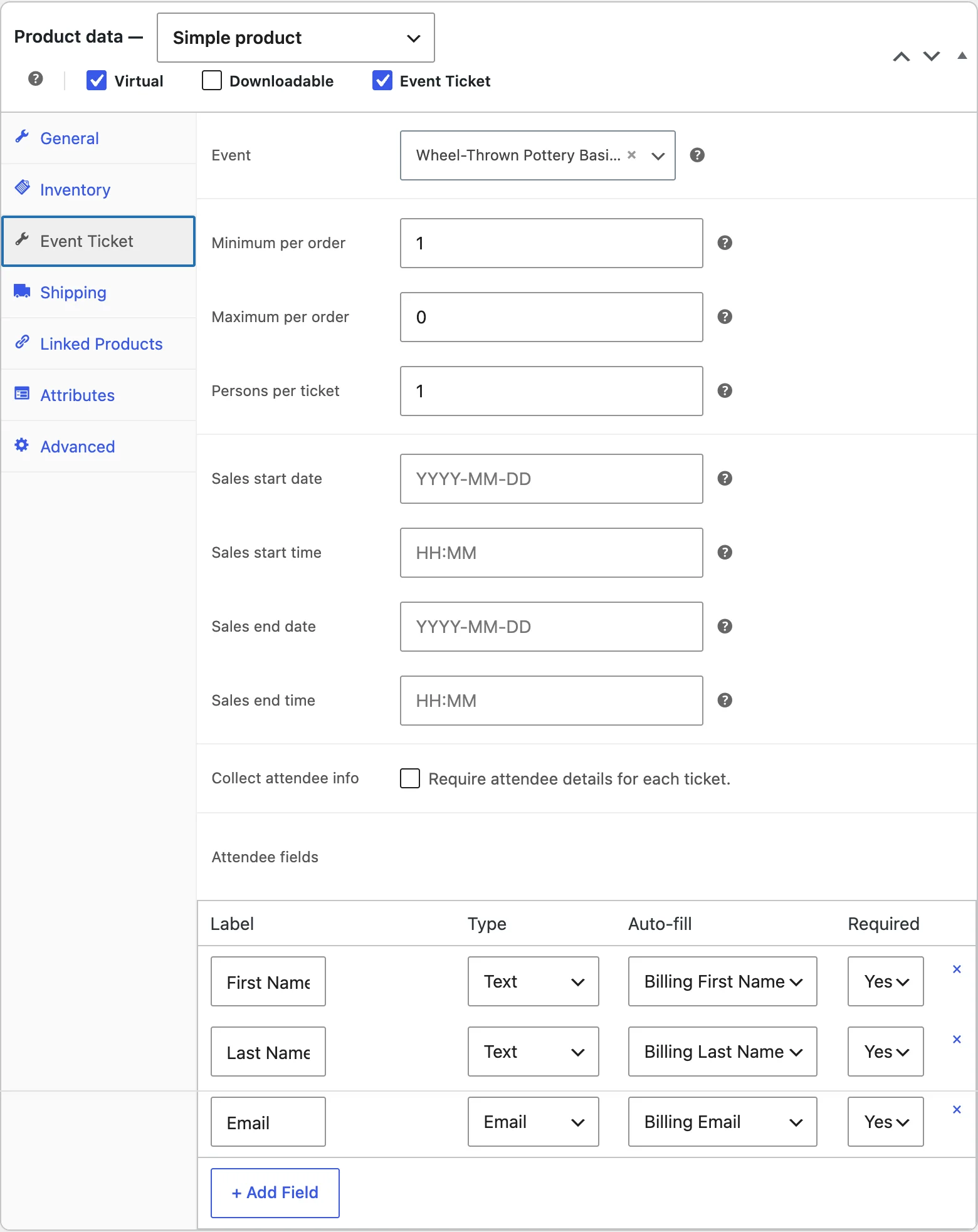
You can also start from Products > Add New. In that case, check Event Ticket in Product data, then pick the event from the Event dropdown on the Event Ticket tab. The checkbox alone doesn’t link the product to an event. The dropdown does. The product is saved as Virtual automatically, since there’s nothing to ship.
For more than one ticket type, use a variable product with one variation per type. The event is picked once on the parent, and each variation can have its own price and limits. The ticket sales docs cover the variation fields, and my post on how to price event tickets helps with what to charge.
Step 4: choose a calendar view#
Evenzo’s calendar has two views. Pick by how often you run events.
Month view#
A grid for the month, with each day listing its events. Visitors move between months with the Previous Month and Next Month arrows, and a Today button in the footer jumps back to the current month. The arrows load the next month in place, without a page reload.
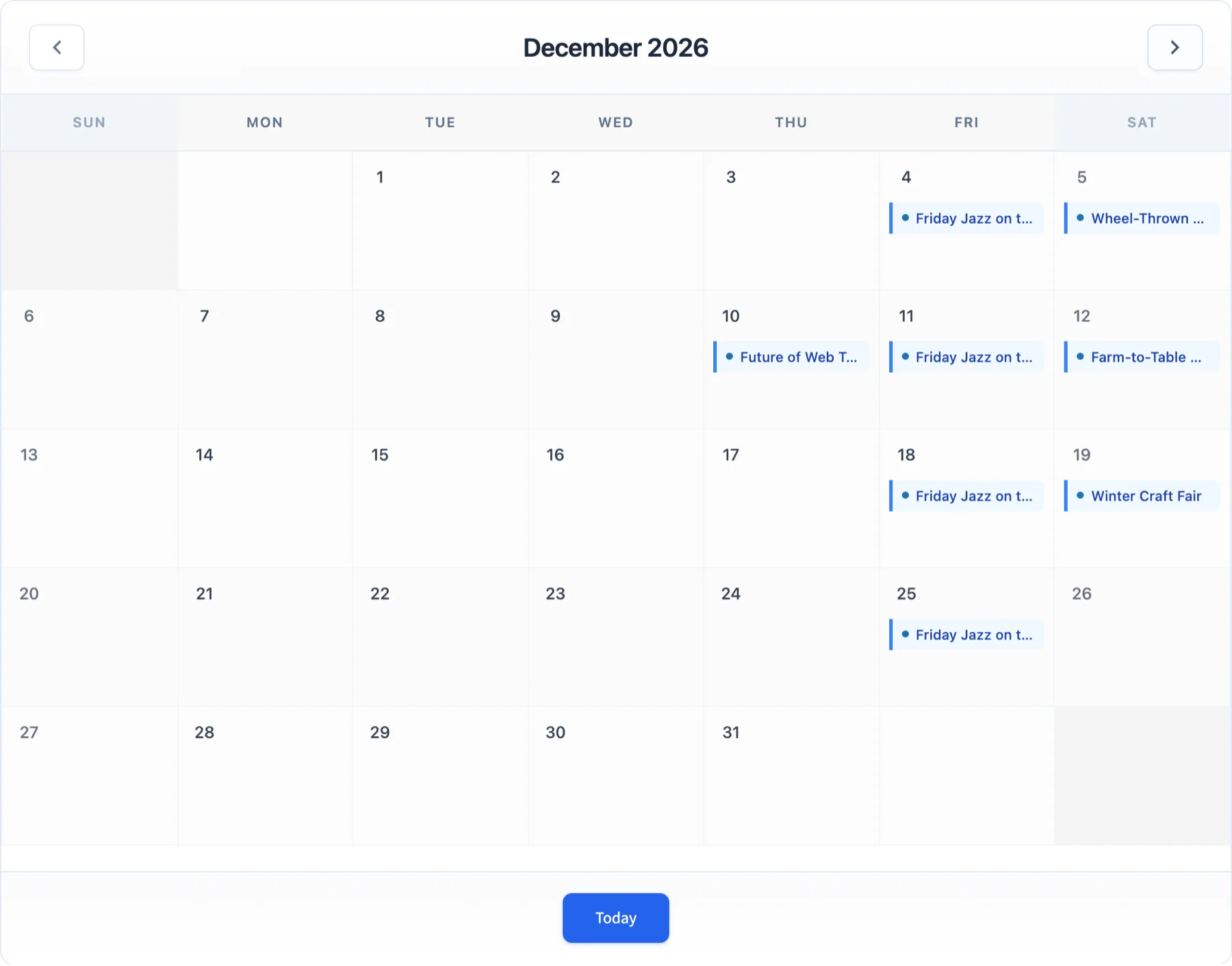
Clicking an event opens a popup with its title, date, start time and venue, the excerpt if the event has one, and a View Event button. Write a short excerpt for each event. It’s the only description the popup shows.
Month view fits a venue or studio with something on most weeks, where visitors want to know what’s on this Saturday.
List view#
The next 20 upcoming events in date order. Each row has a date box, the time, the venue and a thumbnail. It suits a short season or a few events a month, where a month grid would be mostly empty squares.
Where the view is set#
Set the view on the block’s Default View dropdown, which offers Month View and List View. Or set it with the shortcode’s view attribute.
The Default Calendar View setting on the Display tab offers Month, Week, Day and List, but the calendar ignores it. Events Per Page and Show Past Events on the same tab are saved and ignored the same way.
The shortcode accepts view="week" but draws the month grid. There is no week or day view.
My pick: month view on the main events page, and the Upcoming Events block or widget in sidebars and on the homepage, where space is tight.
Step 5: put the calendar on a page#
The block and the shortcode draw the same calendar. Use the block in the block editor, and the shortcode on classic pages or in a page builder’s shortcode element.
With the Event Calendar block#
- Create a page, for example “Events”.
- Open the block inserter and add the Event Calendar block. It’s in a block category called Events Manager. That’s Evenzo’s own category name, not the separate Events Manager plugin.
- In the block sidebar, under Calendar Settings, choose a Default View. Pick a category in Filter by Category if this page should show only one kind of event.
- Under Display Options, turn Show Navigation Arrows and Show Today Button on or off.
- Publish the page and add it to your menu.
The block supports wide and full alignment. On a wide theme, set it to wide so the month grid isn’t squeezed into the text column.
With the shortcode#
The shortcode is [emwc_calendar]. This version sets every option:
[emwc_calendar view="month" category="workshops" show_nav="yes" show_today="yes"]The view attribute takes month or list. The category attribute takes one event category slug. Both show_nav and show_today take yes or no.
The shortcode can do one thing the block can’t. With year and month it opens on a month other than the current one, so a December festival page can open on December all year:
[emwc_calendar year="2026" month="12"]Lists, sidebars and single events#
Evenzo has other ways to show events too:
| What you want | Block | Shortcode | Widget |
|---|---|---|---|
| Month or list calendar | Event Calendar | [emwc_calendar] | EMWC Mini Calendar (small month grid) |
| List, grid or compact list | Events List | [emwc_events layout="grid" columns="3"] | None |
| Short list of next events | Upcoming Events | [emwc_upcoming limit="5"] | EMWC Upcoming Events |
| One event inside a post | Event Card | [emwc_event id="123"] | None |
| Countdown to one event | Event Countdown | None | None |
Add widgets at Appearance > Widgets. The mini calendar shows the arrows but not the Today button. Every option for each shortcode is in the shortcode reference, and the block settings are in the blocks docs.
You also get an event archive at /event/. It’s a grid of event cards, not a calendar, so link your calendar page from the menu instead.
Step 6: set up recurring events#
A Tuesday and Thursday class for 12 weeks is 24 events. You don’t have to create them by hand.
- Create or open the event that holds the first date. It becomes the parent of the series.
- In Event Settings, set Repeat Event to Daily, Weekly, Monthly or Yearly.
- Set Every to the gap between dates, from 1 to 99. The unit follows the pattern, so 2 on a weekly series means every two weeks.
- For a weekly series, tick the days under On days. For a monthly series, set Repeat on to Same day of the month (the 15th) or Same day of the week (the second Tuesday).
- Set Ends to Never, On date with an End Date, or After occurrences with a number in Occurrences.
- Read the Summary line under the fields, then publish.
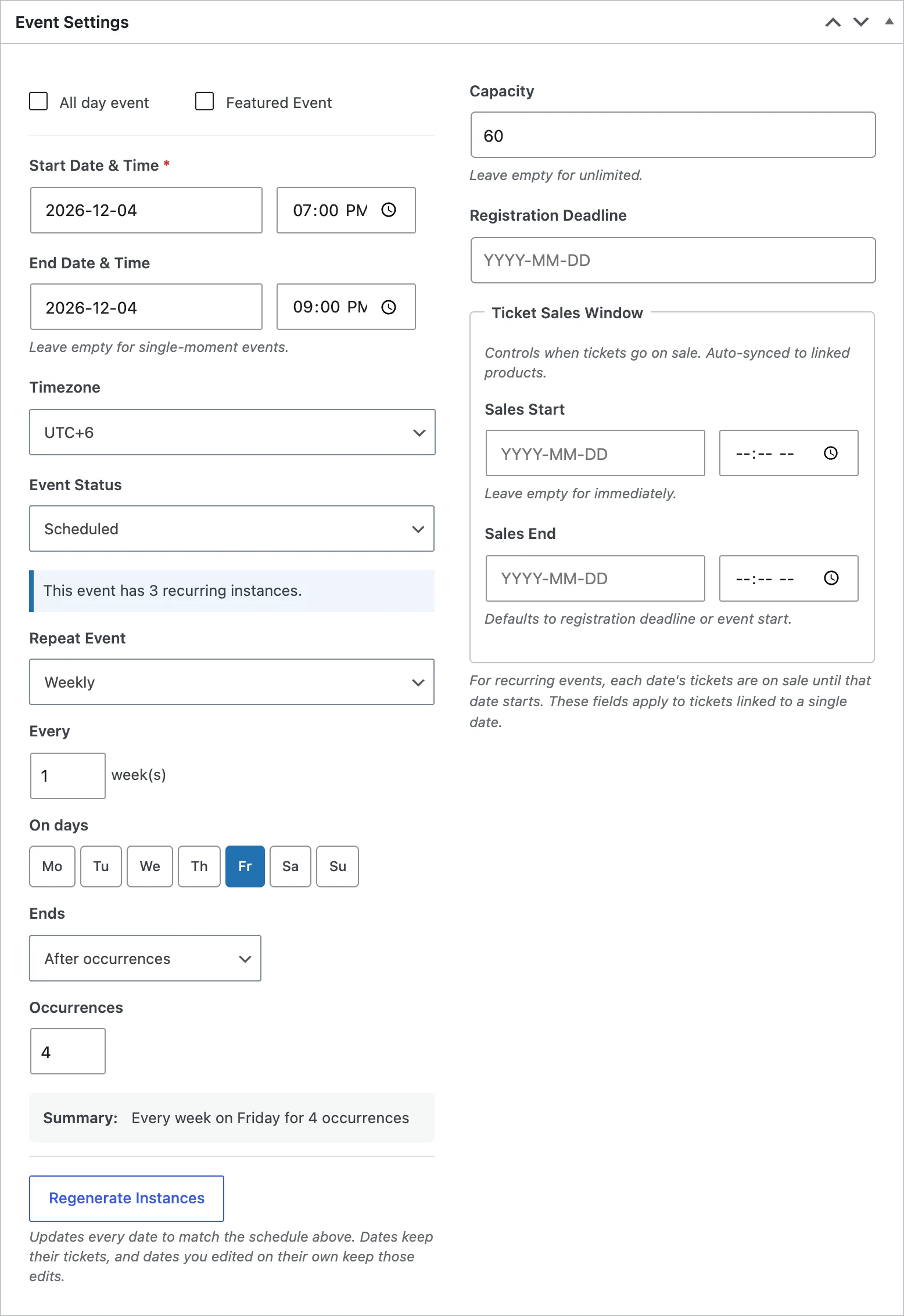
For that class, the settings are Weekly, Every 1, On days Tuesday and Thursday, and After occurrences 24. That gives 24 sessions over 12 weeks.
Each extra date becomes its own event post, linked to the parent, so every session shows on the calendar on its own day. After publishing, check the dates in Events > All Events.
Know these limits before you set up a long series:
- Never creates two years of dates. Click Regenerate Instances on the parent later to add more.
- One series is capped at 365 dates.
- The editor has no excluded dates. To skip a holiday, move that date’s event to the Trash. It stays gone when you update the parent, but comes back if you change the schedule or click Regenerate Instances.
Since version 1.1.0, editing one date keeps that date’s own changes when you update the parent later. Changing the schedule adds new dates and moves dropped ones to the Trash. A date with tickets sold is never removed. It’s kept, and a notice lists it so you can sort out those tickets first.
One ticket product for every date#
When I read through reviews of other event plugins, this was the request I saw most: one ticket for every date of a series. Evenzo couldn’t do it either until version 1.1.0. Before that, each date needed its own ticket product.
Since 1.1.0, one ticket product can sell every date in the series. Open the parent event and click + Add New Ticket, or link an existing product to the parent on its Event Ticket tab.
On the event page, customers see a Choose a date list above the tickets. Picking a date reloads the page for that date, with its own time, status and places left.
Each date gets its own capacity, copied from the parent, so selling out one Tuesday leaves the other Tuesdays on sale. Sold out and closed dates stay in the list but can’t be picked.
Leave stock management off on that product. One product covers many dates, so the per-date capacity does the limiting, not WooCommerce stock. The recurring events docs also cover per-date waitlists and what happens when someone cancels.
What attendees see#
Before you share the page, follow the path a visitor takes.
- On the calendar, they click an event and get the popup, then View Event.
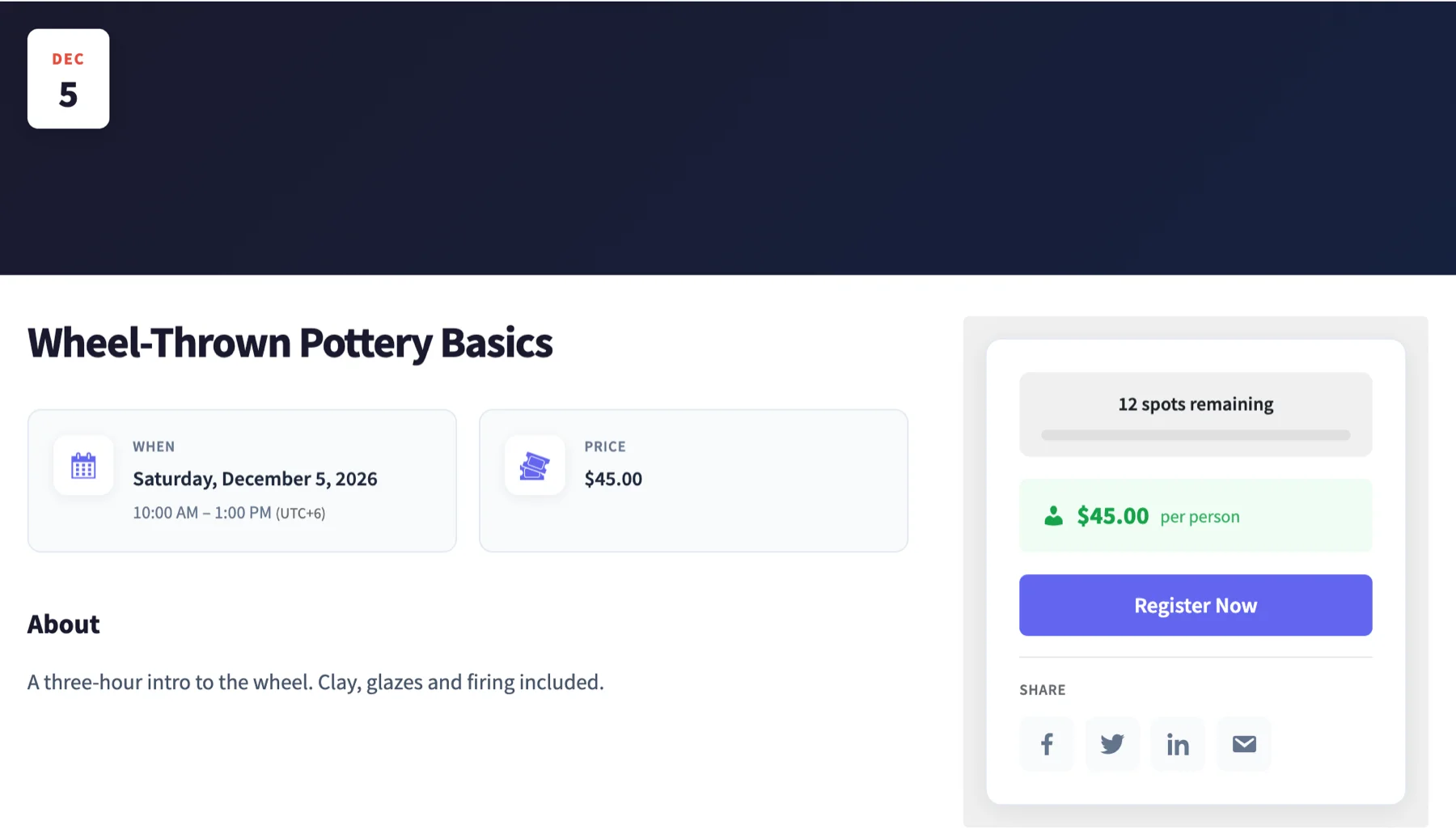
- The event page shows When, Where, Hosted by and Price cards, an About section, the venue with a Get Directions link, and any speakers. The sidebar holds the tickets with a Register Now or Buy button. Before sales open it shows “Tickets Coming Soon!”, and after they close it shows “Ticket sales have ended”.
- They pay through your normal WooCommerce checkout. Attendee fields show up there if you turned on Collect attendee info.
- When the order reaches Processing or Completed, the plugin creates the ticket. The Event Registration Confirmation email and the Event Ticket Delivery email go out, and the second one carries the QR code.
- In My Account > My Tickets, they see each ticket with its event, date, ticket code, seat and status. The QR button shows the code with a Save QR Code button, and Print opens a printable ticket.
The event page sidebar also has Add to Calendar links for Google Calendar, Outlook and Yahoo Calendar, plus an .ics file for Apple Calendar and other apps. Two settings control them: Show “Add to Calendar” buttons on the Display tab and Enable iCal/ICS export for events on the Advanced tab.
That’s the full WooCommerce event registration flow. For free events, use a ticket product priced at 0. The visitor still goes through checkout, so each registration is still recorded.
Other WooCommerce events calendar plugins#
Evenzo isn’t the only option, and for some stores it isn’t the best one. The numbers below are from WordPress.org on October 29, 2026.
The Events Calendar has 600,000+ active installs and a 4.2 out of 5 rating from 2,461 ratings. The free plugin has month, list and day views, and a day view is something Evenzo doesn’t have. Recurring events and ticket sales come from add-ons.
The free Event Tickets plugin (90,000+ installs, 3.5 out of 5 from 236 ratings) handles RSVPs and tickets, and its listing says full WooCommerce integration needs Event Tickets Plus. Pick it if a large community and a day view matter more than having everything in one plugin.
Events Manager by Marcus Sykes has 60,000+ active installs and a 4.2 out of 5 rating from 551 ratings. The free version has calendars, bookings, blocks for a calendar and an events list, and recurring series with exclusion dates.
That last one is a real gap in Evenzo, which has no excluded dates in its editor. Its listing says WooCommerce integration is part of the Pro add-on, sold separately. Pick it if your schedule has lots of holidays to skip and you don’t need WooCommerce checkout.
Evenzo is newer than both and has a much smaller install base. It puts the calendar, WooCommerce ticket products, recurring dates with one ticket per series, and the My Tickets page in one free plugin.
I’d pick it if you sell through WooCommerce and want all of that without add-ons. I compared more plugins, including the hosted platforms, in selling event tickets without Eventbrite.
Whichever plugin you choose, set up one test event before the whole season. Put the calendar on a page, place a test order, and open My Tickets as the buyer. A mistake is much easier to fix on one event than on a full season, and that one test order is the step I’d never skip.
Frequently asked questions#
How do I add an event calendar to a WooCommerce page?#
With Evenzo, add the Event Calendar block from the Events Manager block category, or paste [emwc_calendar] into the page. Both draw the same calendar. Set month or list view on the block or with the shortcode’s view attribute. The setting on the Display tab doesn’t change it.
Can the calendar show only one category of events?#
Yes. Pick a category in the block’s Filter by Category dropdown, or add category="your-slug" to the shortcode. The calendar takes one category. The [emwc_events] list shortcode accepts several slugs separated by commas.
Does the calendar show past events?#
The month view shows every event in the month on screen, including dates that have passed. The list view shows only upcoming events, up to 20. The Show Past Events setting doesn’t change either view.
How does WooCommerce event registration work?#
Each ticket is a WooCommerce product linked to an event. The customer buys it through your normal checkout.
When the order reaches Processing or Completed, the plugin creates the attendee record and ticket and sends the confirmation and ticket emails. The ticket then shows under My Account > My Tickets. For free events, a ticket priced at 0 still records each registration.
Can one ticket product sell every date of a recurring event?#
Yes, from Evenzo version 1.1.0. Link the product to the parent event. Customers pick a date from the Choose a date list, and each date has its own capacity. A product linked to a single date still sells only that date.
Plugin we built for this
We didn't just write about it. We built something for it.
Keep reading
How to sell event tickets on your WordPress site (2026 guide)
How to sell event tickets on a WordPress site, with or without WooCommerce: a ticket plugin, a form builder or your store, and the one I'd pick for each case.
Read more →
WooCommerce event manager: run events from your store (2026)
How I'd set up a WooCommerce event manager: create the event, link a ticket product, add a calendar, and check people in with a QR code at the door.
Read more →
How to price event tickets: 7 proven strategies (2026)
How to price event tickets: seven strategies with example numbers, from tiers and early bird to group and member discounts, and the price I'd start from.
Read more →