
How to Sell Event Tickets on Your WordPress Site (2026 Guide)
You don't need Eventbrite or Ticketmaster to sell event tickets. If you have a WordPress site, here's how to set up ticket sales from your own domain.

You’re running an event. Workshop, conference, charity gala, weekly yoga class, whatever it is. You need to sell tickets online. The obvious move is to set up an Eventbrite page and start selling.
But then you look at the fees. Eventbrite charges 3.7% + $1.79 per ticket on their cheapest plan. Sell 500 tickets at $40 each, and you’ve paid $2,795 in platform fees alone. For a checkout page.
If you already have a WordPress site, you don’t need to pay that. You can sell tickets directly from your own site, keep 100% of the revenue (minus normal payment processing), own all attendee data, and build your event brand on your domain instead of someone else’s.
This guide covers the three main approaches, who each one works best for, and what you actually need to get started.
Three ways to sell event tickets on WordPress#
Not all WordPress ticketing setups are the same. The right approach depends on whether you already have WooCommerce, how many events you run, and what features you need.
Approach 1: WooCommerce + an event plugin#
Best for: Store owners who already use WooCommerce, or anyone who wants full control over payments, taxes, and customer data.
If you already run a WooCommerce store, you have payments, customer accounts, order management, coupon codes, and email notifications built in. An event plugin adds the missing pieces: event dates, venues, calendars, QR check-in, and PDF tickets.
This is the most powerful approach because everything runs through WooCommerce’s checkout. Your existing Stripe or PayPal setup handles payments. Your tax configuration applies to tickets. Coupons work automatically. There’s nothing new to configure on the payment side.
Plugins that do this:
- Evenzo – Events Manager for WooCommerce (Free, WordPress.org) is our plugin, so factor in our bias. It adds event management, seating charts, QR check-in, PDF tickets, recurring events, and speaker management on top of WooCommerce. Full HPOS and Block Checkout support.
- FooEvents ($129+/year) is the most established WooCommerce event plugin. Solid for ticketing and check-in. Separate paid add-ons for seating, multi-day events, and custom attendee fields.
- Event Tickets Plus ($149+/year) from The Events Calendar team. Connects their calendar ecosystem to WooCommerce for payment processing. Large community and extensive documentation.
We did a deep comparison of every major WooCommerce event plugin in Selling Event Tickets Without Eventbrite if you want the full breakdown.
Approach 2: Standalone WordPress ticket plugins#
Best for: People who don’t use WooCommerce and want the simplest possible setup.
These plugins handle everything themselves, including their own checkout, payment connections, and ticket delivery. No WooCommerce required.
- Event Tickets (Free + paid tiers) from The Events Calendar. The free version supports Stripe and PayPal through their built-in “Tickets Commerce” system. Attach tickets to any post, page, or event.
- Events Manager (Free) by Marcus Sykes. Been around since 2008. Supports registrations and basic ticketing with PayPal. No WooCommerce needed for simple setups.
Standalone plugins are simpler to set up but offer less flexibility. You won’t have WooCommerce’s coupon system, tax rules, multi-currency support, or the hundreds of extensions available for payment processing and marketing.
Approach 3: Form builders with payment#
Best for: One-off events where you just need to collect registrations and payments.
If you run a single annual event and don’t need recurring tickets, calendar pages, or check-in systems, a form builder can handle it:
- WPForms or Gravity Forms with Stripe or PayPal add-ons. Create a registration form with payment fields. Simple, but no ticket generation, no QR codes, no attendee management.
This works for collecting money. It doesn’t work for running events with any operational complexity.
What you actually need (the minimum viable setup)#
Regardless of which approach you choose, here’s what a working ticket-selling setup requires:
Required:
- A WordPress site with SSL (HTTPS). No exceptions, you’re handling payments.
- A payment gateway account (Stripe or PayPal, ideally both).
- An event plugin that generates unique tickets per order.
- Email delivery that actually works (your host’s email or an SMTP plugin like WP Mail SMTP).
Strongly recommended:
- PDF ticket generation with QR codes. Attendees expect a scannable ticket they can pull up on their phone.
- A mobile-friendly check-in system. Even small events benefit from scanning instead of paper lists.
- WooCommerce, if you plan to run more than one or two events. The checkout and order management features pay for themselves immediately.
Nice to have:
- Seating charts for reserved-seating venues.
- Recurring event support for weekly/monthly events.
- Attendee custom fields (dietary requirements, t-shirt sizes, accessibility needs).
- Early bird and tiered pricing. We wrote a full guide on 7 pricing strategies that maximize ticket revenue if you want to go deeper.
The cost comparison nobody talks about#
Third-party platforms look simple until you do the math over a year:
| Scenario | Eventbrite fees | Self-hosted (WooCommerce + free plugin) |
|---|---|---|
| 100 tickets at $25 | ~$549 | $0 plugin cost + ~2.9% payment processing |
| 500 tickets at $50 | ~$2,795 | $0 plugin cost + ~2.9% payment processing |
| 1,000 tickets at $50 | ~$5,490 | $0 plugin cost + ~2.9% payment processing |
| 4 events/year, 200 tickets each at $40 | ~$4,392 | $0 plugin cost + ~2.9% payment processing |
Payment processing fees (Stripe’s 2.9% + $0.30 per transaction) apply regardless of whether you use Eventbrite or self-host. The difference is you’re not paying platform fees on top of processing fees. With a free plugin like Evenzo on WordPress.org, the only ongoing cost is your existing WooCommerce hosting and payment processor.
For a single small event, the savings might not justify the setup time. For anyone running multiple events or selling more than a couple dozen tickets, self-hosting pays off immediately.
Setting up your first event (the quick version)#
If you want to go the WooCommerce route, here’s the 15-minute overview:
- Install WooCommerce if you don’t have it. Connect Stripe or PayPal in WooCommerce > Settings > Payments.
- Install an event plugin. For a full walkthrough of our plugin, see how to run events directly from your WooCommerce store.
- Create an event with date, time, venue, and capacity.
- Add ticket products (General Admission, VIP, or whatever tiers you need) and set prices.
- Publish. Customers buy tickets through your normal WooCommerce checkout and receive PDF tickets via email.
- On event day, open the check-in page on your phone browser and scan QR codes as people arrive.
The whole setup takes about 15 minutes if WooCommerce is already running.
Which approach should you pick?#
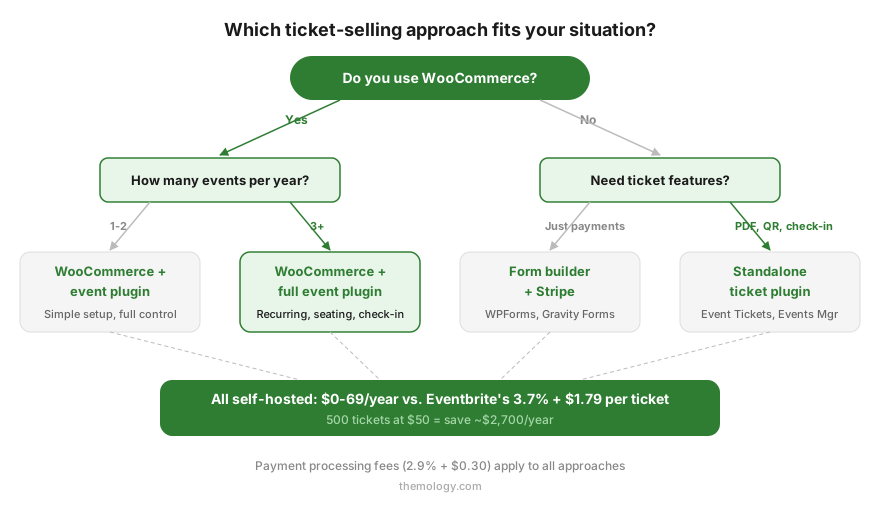
Here’s the decision simplified:
Already have WooCommerce? Use a WooCommerce event plugin. You get the most features with the least new configuration. Your payments, taxes, and customer accounts are already set up.
Don’t have WooCommerce and don’t want it? Use Event Tickets (standalone) from The Events Calendar. Their free Tickets Commerce handles Stripe and PayPal without WooCommerce.
Just need to collect money for one event? A form builder with Stripe works. Don’t over-engineer it.
Running events regularly (weekly/monthly)? WooCommerce + a full event plugin is worth the setup investment. Recurring event support, attendee management, and proper ticket systems will save you hours every week.
Frequently asked questions#
Can I sell tickets without WooCommerce?#
Yes. Plugins like Event Tickets have their own built-in checkout system (Tickets Commerce) that handles Stripe and PayPal directly. You lose WooCommerce’s coupon system, tax rules, and extension ecosystem, but for simple events it works fine.
What payment gateways can I use?#
With WooCommerce, you can use any gateway WooCommerce supports: Stripe, PayPal, Square, Authorize.net, Mollie, and dozens of others. Standalone plugins typically support only Stripe and PayPal.
How do I handle refunds?#
WooCommerce handles refunds natively through your payment gateway. Process a refund in WooCommerce and the money goes back to the customer’s card automatically. Standalone plugins vary; check the plugin’s refund handling before committing.
Do I need a special hosting plan?#
No. Any hosting that runs WordPress and WooCommerce works for ticket sales. If you’re expecting large bursts of traffic when tickets go on sale, consider a host with server-level caching (Cloudways, Kinsta, WP Engine). For general performance advice, see our guide on why most WooCommerce stores feel slow.
Can attendees get PDF tickets with QR codes?#
Most dedicated event plugins generate PDF tickets with scannable QR codes automatically. This is standard in FooEvents, Evenzo – Events Manager for WooCommerce, and Event Tickets Plus. Basic form builder setups don’t include this.
What about check-in on event day?#
Good event plugins include a browser-based check-in page. No app to download, no special hardware. Open the URL on any phone, scan the QR code, and the ticket is validated instantly. We covered the full check-in workflow in running events from your WooCommerce store.
The bottom line#
Selling event tickets on WordPress is straightforward with the right plugin. If you already have WooCommerce, you’re 15 minutes away from a working setup. If you don’t, standalone options like Event Tickets get you started for free.
The real question isn’t whether WordPress can handle ticket sales. It can, and thousands of event organizers prove it every day. The question is whether you want to keep paying platform fees for something your own website can do.
If you want the full WooCommerce event experience with seating charts, recurring events, QR check-in, and dynamic pricing, check out Evenzo – Events Manager for WooCommerce. It’s free on WordPress.org. Running a raffle alongside your event? Our charity raffle guide covers the legal side, and Raffle for WooCommerce handles the technical setup for free. Once ticket sales are live, make sure your checkout is protected from bots with our WooCommerce CAPTCHA comparison.
Plugins we built for this
We didn't just write about it. We built something for each.
Evenzo – Events & Tickets Manager for WooCommerce
Free WooCommerce event ticketing plugin from WordPress.org. Sell tickets, scan QR codes, manage attendees, seating charts, and calendar views. No platform fees.
Download free →Raffle for WooCommerce
Free WooCommerce raffle plugin. Unlimited raffles, gift tickets, QR codes, Random.org winner selection, Instant Win, and compliance tools.
Download free →Keep reading

How to Price Event Tickets: 7 Proven Strategies (2026)
Most event organizers guess at ticket pricing and leave money on the table. Here are 7 pricing strategies with real numbers that fill seats and maximize revenue.
Read more →
WooCommerce Event Manager: Run Events From Your Store (2026)
Your WooCommerce store already handles payments and accounts. Here's how to add a full event calendar with ticket sales, QR check-in, and PDF tickets.
Read more →
Selling Event Tickets Without Eventbrite (2026 Guide)
Eventbrite takes up to 9.95% per ticket. Your WooCommerce store already handles payments and accounts. We tested 6 event plugins to find what actually replaces it.
Read more →