
 Nazmoon Munny 7 min read
How to customize your WooCommerce PDF invoice template
Customize your WooCommerce PDF invoice template: branding fields and four layouts with no code, then theme overrides, extra CSS and a Weight column.
I typed two lines into the invoice footer of a made-up pottery studio: a thank-you, then a returns note. The PDF printed them as one run-on sentence.
I wanted the returns note on its own line, where a buyer would actually read it.
WooCommerce doesn’t make PDF invoices by itself, so this walkthrough uses Emboss, the free invoice plugin we build. Every setting, filter and path below comes from its version 1.1.1.
I spent an afternoon changing every part of one invoice template. The store was Little Farm Pottery in Berlin, and my test order was four mugs and two bowls.
TLDR
Most WooCommerce PDF invoice template changes need no code: logo, name, address, accent color, footer and one of four layouts. For layout changes, copy a template file into an
emboss-pdf-invoicesfolder in your child theme. Small style changes fit in one CSS filter.
Start with the branding fields#
Go to WooCommerce > Settings > Invoices and open Branding. This screen covers what most stores want: Template style, Company logo, Company name, Company address, Accent colour and Footer text.
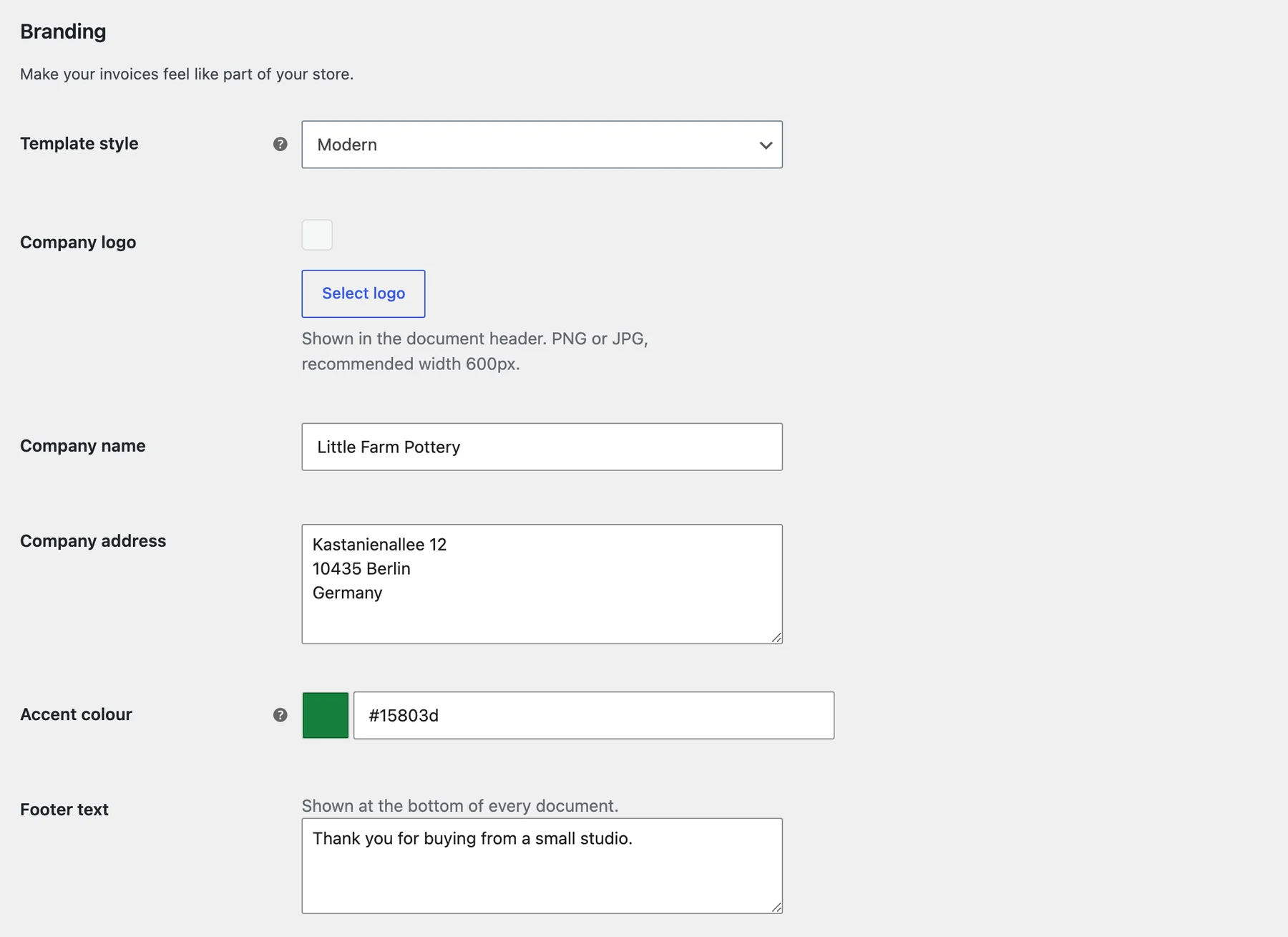
The logo field’s help text asks for a PNG or JPG, with a recommended width of 600px. The accent color’s help tip says it goes on headings, totals and the PAID badge. I used a deep green, #15803d, and it showed up on the Total line straight away.
To see where the name and address come from, I backed up the plugin’s settings on my test site, deleted them and turned the plugin off and on again. The fields came back filled with my site title, My Little Farm, in place of the Little Farm Pottery I’d typed, and the address from WooCommerce > Settings > General.
After that first fill they’re plain fields. I changed the store’s city to Potsdam, and the invoice still said Berlin.
When I cleared Company name, the header printed the address with no name above it. So don’t clear one expecting a fallback.
Your VAT number, registration number and terms live one tab over, under Legal. Paper size, A4 or Letter, is under General.
Pick one of the four layouts#
Template style has four options, and each one changes the whole document, not only the colors.
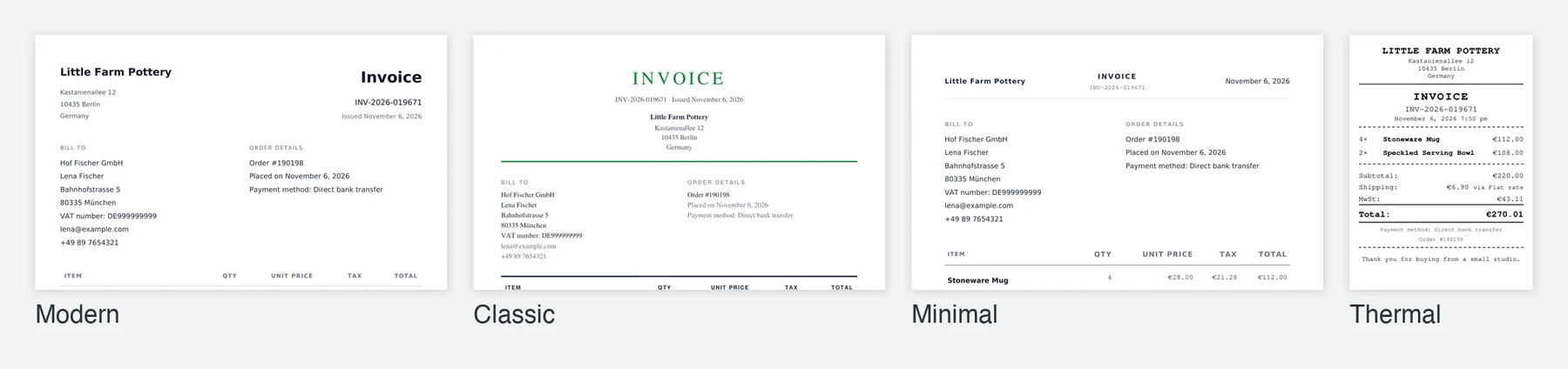
- Modern is the default, and it’s what my reset settings came back with. Logo or company name on the left, a big “Invoice” title on the right.
- Classic centers a serif title in the accent color, with a rule under the header.
- Minimal drops the logo and puts name, title and date in one line.
- Thermal is a receipt for POS printers. My Thermal test PDF was 80mm wide with no logo, and it stayed 80mm when I switched the paper size to Letter.
I’d stay on Modern unless your brand leans formal, where Classic fits better. Thermal only makes sense if you print on a receipt printer at a market stall or counter.
Fix the footer with a theme override#
Branding fields can’t change structure. For that, the plugin looks for template files in your theme before its own, the way WooCommerce handles its own template overrides.
Make a folder called emboss-pdf-invoices in your child theme. A child theme matters here, because a theme update would wipe the folder from a parent theme. Then copy the file you want to change from the plugin’s templates folder, keeping the same path inside it.
For my footer, I copied templates/partials/footer.php to:
wp-content/themes/your-child-theme/emboss-pdf-invoices/partials/footer.phpMy test site runs Storefront with no child theme, so for testing I put my copies in Storefront’s own folder.
Near the bottom of the copy, the footer text prints with esc_html(). I wrapped it in nl2br() so line breaks survive:
<?php echo nl2br( esc_html( $epdi_footer_text ) ); ?>Before the change, my two lines came out as “Thank you for buying from a small studio. Returns within 30 days.” on one line. After it, they printed on two.
The templates docs list the rest. Partials like the header, address block, items table and totals can each be overridden on their own, so you only copy what you change, and there are full documents too: invoice.php, receipt.php, proforma.php, credit-note.php and packing-slip.php.
With my footer copy in the main folder, Modern, Classic and Minimal all printed it. Then I put a second copy in emboss-pdf-invoices/classic/partials/footer.php. Classic switched to that one, and the other two kept the main copy.
Change styles with one filter#
If you only want a more readable footer or tighter table headings, copying a stylesheet is more than you need. The epdi_pdf_css filter hands you the finished CSS, so you can add rules at the end:
add_filter( 'epdi_pdf_css', function ( $css ) {
	// Larger, darker footer text and no letter spacing in table headings.
	return $css . ' .epdi-footer { font-size: 9pt; color: #4b5563; } .epdi-items thead th { letter-spacing: 0; }';
} );
Add it to your child theme’s functions.php or a snippets plugin like WPCode. Before the filter, my footer printed at 8pt in light gray (#9ca3af). On the next render it came out at 9pt in the darker #4b5563, which is much easier to read.
The plugin can also read a whole style.css from your override folder, but it doesn’t follow the template order. I copied the plugin’s stylesheet to emboss-pdf-invoices/style.css and turned the footer red at the end. Modern printed it red, and Classic, Minimal and Thermal kept their own footer colors.
The plugin’s own templates/classic/style.css, templates/minimal/style.css and templates/thermal/style.css won over my main-folder file. When I put a copy at emboss-pdf-invoices/classic/style.css, the Classic footer turned red too.
Fonts from the web don’t load. I added a Google Fonts link for Lobster to my stylesheet and set it on the footer, and the PDF came out in DejaVu Sans with no Lobster in it.
A font file on my own test site, linked over https, failed the same way. The same file did load when my @font-face pointed at its path on the server instead of a URL.
In my test PDFs, Modern came out in DejaVu Sans, Classic in Times and Helvetica, Minimal in DejaVu Sans with Courier numbers and Thermal in Courier. I’d stick with those.
Add a column to the items table#
My pottery store wanted shipping weight on each line. Two filters do it: one adds the column, one fills it.
// Add a Weight column before Total on Emboss PDF invoices.
add_filter( 'epdi_items_columns', function ( $columns ) {
	$total = $columns['total'];
	unset( $columns['total'] );
	$columns['weight'] = array(
		'label'     => 'Weight',
		'align_num' => true,
	);
	$columns['total'] = $total;
	return $columns;
} );

// Fill the Weight cell from the product's weight and the store's weight unit.
add_filter( 'epdi_item_data', function ( $data, $item ) {
	$product        = $item->get_product();
	$weight         = $product ? $product->get_weight() : '';
	$data['weight'] = $weight ? esc_html( $weight . ' ' . get_option( 'woocommerce_weight_unit' ) ) : '';
	return $data;
}, 10, 2 );
On my test order, both lines got “0.6 lbs” between Tax and Total. I’d left my test site’s weight unit on pounds from earlier tests, and both products had 0.6 set.
A store set to kilograms gets kg. The value is the weight of one item, so change the label to “Weight each” if your buyers might read it as a line total.
The snippet escapes the weight with esc_html(), because the developer guide says each cell is HTML and asks you to escape what you return. When I switched the same order to Thermal, the Weight column didn’t appear. So if you print receipts, these two filters won’t reach them.
The same guide lists the other hooks, like changing the PAID text or the file name.
Check your changes without burning invoice numbers#
There’s no preview screen in the plugin. The fastest loop I found was a test order plus the Regenerate button in the Emboss box on the order screen. Edit the file, click Regenerate, open the PDF.
I made a new unpaid order and gave it a packing slip and a proforma. The invoice counter stayed at 19682. When I marked it as processing, it got INV-2026-019682 and the counter moved to 19683.
Regenerating doesn’t take a new number. My test order kept INV-2026-019671 through every regenerate, but its first invoice used one up, so test on a staging copy or an order you’re fine numbering.
If you have WP-CLI, there’s a command for this. I ran:
wp epdi test-pdf 190198 --type=packing-slipIt wrote a new packing slip for that order. Packing slips and proformas left the counter alone in my test above, so they’re the types I’d use to check shared parts like the header and footer.
Where I’d start#
I’d make the footer override first, because it’s one copied file and a single changed line. Put your thank-you and your returns note on separate lines, regenerate one test order, and you’ll know the override folder works before you touch anything bigger.
If a template override breaks on your theme, I’d like to hear which file you copied.
Plugin we built for this
We didn't just write about it. We built something for it.
Keep reading
WooCommerce event registration: collect details for every attendee
Set up WooCommerce event registration that asks every attendee for a name, email and your own questions, then see where the answers go and what limits apply.
Read more →
How to run an instant win competition in WooCommerce
Set up a WooCommerce instant win competition: turn on the module, pick probability or guaranteed odds, cap the winners, and see what buyers get after checkout.
Read more →
WooCommerce proforma invoice: when you need one and which plugins make it
What a WooCommerce proforma invoice is, when B2B and bank transfer stores need one, and which plugins generate it, checked against their WordPress.org pages.
Read more →