
 Nazmoon Munny 10 min read
WooCommerce packing slips and delivery notes: what to print and how
Packing slip vs delivery note vs invoice, what a WooCommerce packing slip should show, why it leaves prices out, and how to bulk print them from your orders.
Packing slips weren’t in the first release of Emboss, our invoice plugin. We added them in version 1.0.2, and the choices that shaped them are mostly about what the slip leaves off. It has no prices, no tax, and no payment details, and it never takes an invoice number.
Prices matter most. A packing slip that shows what an order cost is a bad thing to drop into a gift box, and it’s information your warehouse helper or fulfillment partner doesn’t need. So the slip has to leave the money out on purpose.
WooCommerce won’t do any of this for you, because it has no packing slip at all. Say you have 30 orders to pack before the courier arrives. Each box needs a slip so the packer knows what goes in and the customer can check what came out.
The closest you get in WooCommerce is printing the order edit screen from your browser, and that prints prices, the admin menu, and everything else on the page.
TLDR
A packing slip lists what’s in the box and where it’s going, with no prices. A delivery note is close to the same document and often confirms receipt. An invoice is the one with prices and tax. WooCommerce core makes none of them, so you need a plugin. Emboss, our free plugin, prints price-free packing slips from the order screen, the orders list, or as a bulk ZIP of up to 200 orders.
Packing slip vs delivery note vs invoice#
People use these three names loosely, and plugins don’t agree on them either. This is how they usually split.
| Document | Who it’s for | Prices | Main job |
|---|---|---|---|
| Packing slip | Packer and customer | No | List what’s in the box |
| Delivery note | Courier, receiver, sometimes the customer | Usually no | Go with the goods, sometimes signed on receipt |
| Invoice | Customer and accountant | Yes, with tax | Ask for or record payment |
A packing slip and a delivery note overlap so much that many stores only use one of them.
The packing slip is the warehouse view: items, SKUs, quantities, ship-to address. The delivery note travels with the shipment and, in some businesses, gets signed when the goods arrive. B2B buyers who check deliveries against a purchase order often ask for a delivery note by name.
The invoice is a different thing entirely. It carries the prices, the tax, and your business details, and it’s a financial record. My comparison of WooCommerce PDF invoice plugins goes through invoices plugin by plugin. This post stays on the box.
What to put on a WooCommerce packing slip#
The test for each line is simple. Does the packer need it to get the box right, or does the customer need it to check the box? If neither, leave it off.
Why packing slips leave prices out#
Gifts are the obvious case. Someone orders a present and ships it straight to a friend. The friend opens the box, and a slip showing the price is the last thing the buyer wanted in there.
Beyond gifts, the people packing orders don’t need prices to do their job. That might be a seasonal helper, a family member, or a fulfillment company you pay per order. Prices on the slip add nothing for them and show your margins to anyone who looks.
There’s also confusion to avoid. A document with prices and a total looks like an invoice. If a customer gets one in the box and another by email, they may think they’ve been billed twice.
What a packing slip should include#
- Your store name and logo, so the customer knows who sent it.
- The order number, so you can find the order when the customer calls.
- The order date.
- The ship-to address, large and clear.
- The shipping method, which helps the packer pick the right box or label.
- Each item with its variation details, like size and color.
- The SKU for each item, so the packer grabs the right product.
- The quantity of each item.
- The weight, if you ship by weight.
- The customer’s order note, because that’s where “please don’t ring the doorbell” lives.
Some stores add a short returns note in the footer. Keep it to a line or two. The slip isn’t a brochure.
Why WooCommerce doesn’t print packing slips#
WooCommerce core doesn’t generate any order documents. I searched the WooCommerce 11.2.1 source for “packing slip” and got nothing back. Order emails carry an HTML summary of the order, and that’s the only order output you get without a plugin.
That’s why packing slip plugins for WooCommerce exist, and why almost every invoice plugin also does packing slips. They read the same order data and print it two ways: once with prices for the invoice, once without for the box.
How to print packing slips in WooCommerce with Emboss#
Emboss is our plugin, so I’m biased. It’s free on WordPress.org with no paid tier. I made the packing slip below from a test order on Emboss 1.0.2, and checked the rest of this section against its code.
Packing slips in Emboss are manual, and that was a choice. They aren’t created when an order changes status, and they don’t take an invoice number.
You print them when you’re ready to pack, and Emboss builds each one fresh every time, so the slip always matches the order as it is at that moment. If you edited an item or the address after the order came in, the new slip shows the change.
I’d rather the packer hold a slip that matches the order today than one saved the day it was placed.
From the order screen#
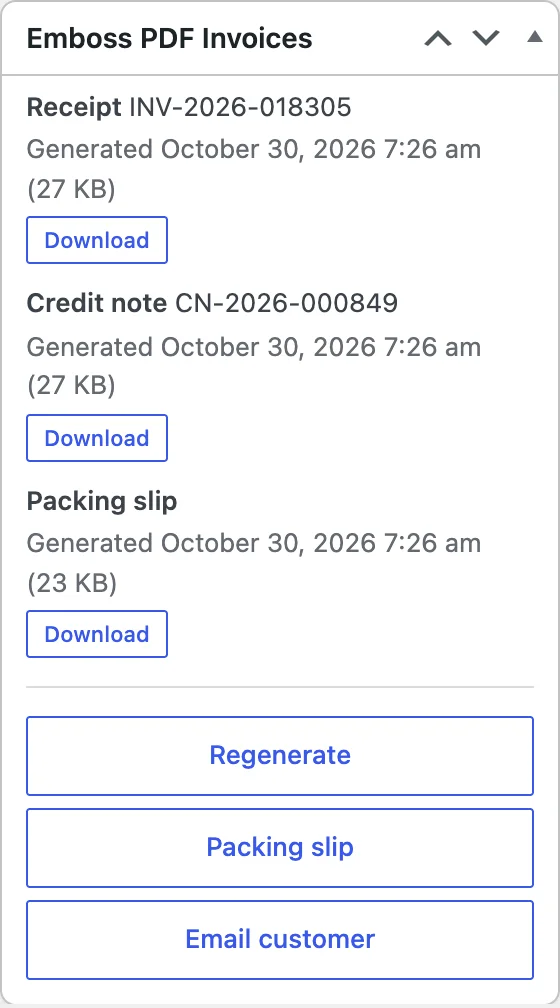
Open the order. In the Emboss box on the right, click “Packing slip”. Emboss builds the PDF and your browser downloads it, ready to print.
From the orders list#
Each row in the WooCommerce orders list gets a “Packing slip” action button. Click it on any order to get that order’s slip without opening the order.
Bulk printing packing slips#
This is the one most stores need on a busy day. Tick the orders on the orders list, open the Bulk actions menu, and pick “Download packing slips (ZIP)”. Emboss builds a fresh slip for each selected order and downloads them as one ZIP file named with the date and time, like packing-slips-2026-10-29-091500.zip.
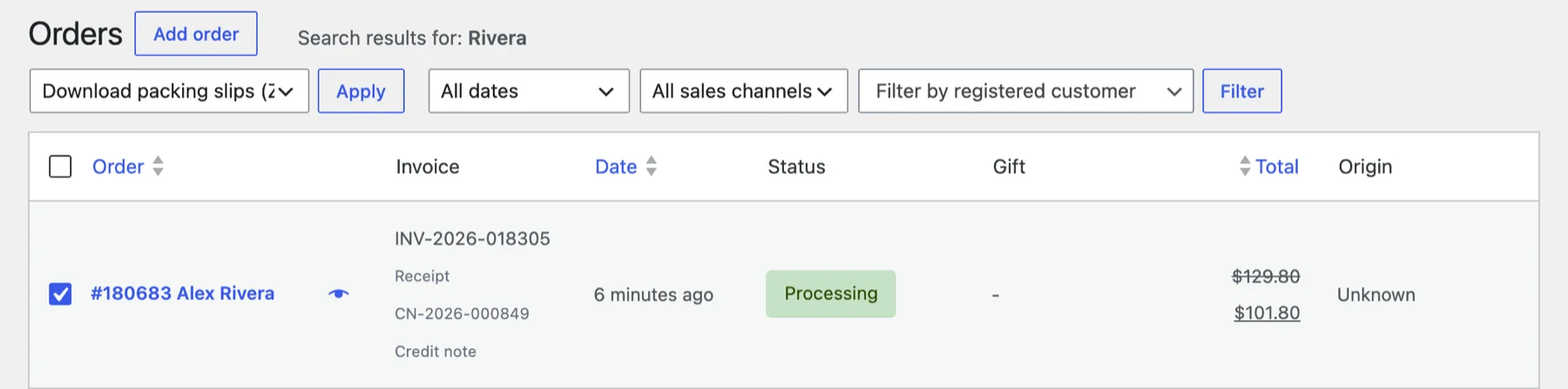
Two limits to know. The bulk download takes up to 200 orders at a time, and above that Emboss asks you to narrow the selection.
And the ZIP holds one PDF per order, not one merged PDF. You unzip the folder and print the files from there. If you want a single multi-page PDF to send to the printer, Emboss doesn’t do that at the moment.
The bulk ZIP needs PHP’s zip extension, which most WordPress hosts include. The bulk actions work on both the HPOS orders screen and the older posts-based orders screen.
What prints on an Emboss packing slip#
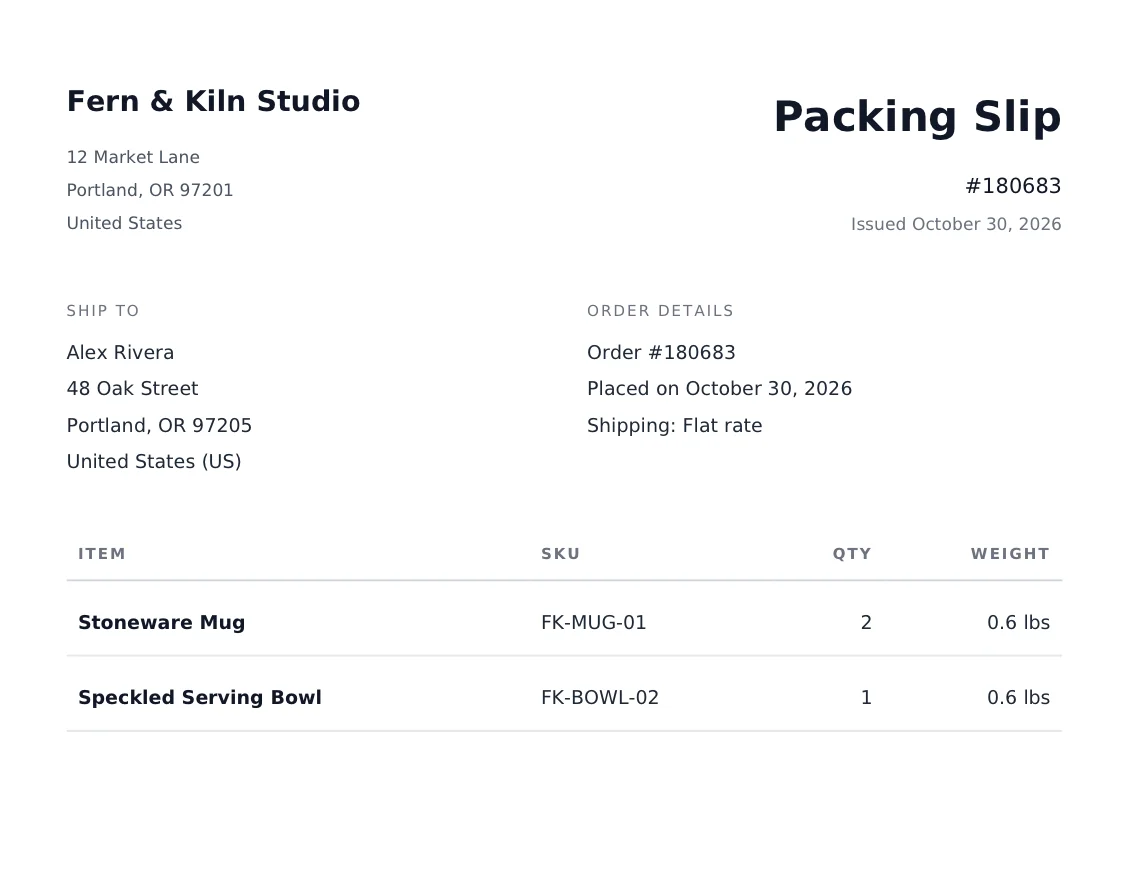
The packing slip template prints:
- Your logo or company name, and the title “Packing Slip”.
- A “Ship to” block with the shipping address. If the order doesn’t need shipping, it uses the billing address instead.
- An “Order details” block with the order number, the “Placed on” date, and the shipping method.
- An items table with four columns: Item, SKU, Qty, and Weight. Variation details print under each item name.
- The customer note, if the order has one.
- Your footer: registered office details, tax or VAT number, registration number, and footer text, when you’ve set them.
There are no prices, no tax, and no payment details anywhere on it. The weight column shows each product’s weight in your store’s weight unit, or a dash when a product has no weight set. A missing SKU also shows a dash, which is a quick way to spot products you forgot to give one.
Your terms and conditions only appear on the packing slip if you tick “Show on all documents” on the Legal tab. By default they stay on invoices.
Thermal printers#
If you pack at a counter with a receipt printer, set Template style on the Branding tab to “Thermal (80mm POS receipt printer)”. The thermal packing slip is a single narrow column with “Ship To” at the top.
For normal printers, pick A4 or Letter under Paper size on the General tab. See the templates docs for what each style looks like.
QR code for warehouse scanning#
The Branding tab has a “QR code on packing slips” setting. It’s off by default. When you turn it on, every packing slip gets a QR code that holds the link to the order’s edit screen in your admin, which is handy when a packer scans a box to check something.
This is the one Emboss feature that contacts an outside service. The QR image comes from the QR Server API (api.qrserver.com, run by Foundata GmbH in Germany), and the encoded data is the order edit URL.
Emboss caches each code for 12 hours. If the service is down, the slip still prints without the QR. Leave the setting off if you don’t want any outside requests.
Attaching packing slips to emails#
This is where Emboss is limited, and I’d rather you know before you pick it. Emboss doesn’t attach packing slips to any email. The Emails tab only covers invoices, receipts, and credit notes. Customers can’t download packing slips from My Account either. Only staff with the manage_woocommerce capability can open them.
For most stores that’s fine, because the slip goes in the box and the customer gets the invoice or receipt by email.
If you need packing slips emailed, for example to a fulfillment partner who prints them on their side, look at a plugin built for that. WP Overnight’s premium Professional extension lists emailed packing slips, and Print Invoice & Delivery Notes can add delivery note print links to WooCommerce emails.
Other packing slip and delivery note plugins#
If you’re looking for a delivery notes plugin specifically, or want features Emboss doesn’t have, these are the main options. I read each plugin’s WordPress.org description, and install counts come from WordPress.org on October 29, 2026. I haven’t tested their packing slip features.
- PDF Invoices & Packing Slips for WooCommerce by WP Overnight (300,000+ active installs). The free plugin downloads packing slips from the order admin page and generates them in bulk. Emailing packing slips needs the premium Professional extension.
- WebToffee WooCommerce PDF Invoices, Packing Slips, Delivery Notes & Shipping Labels (50,000+). Lists packing slips, delivery notes, dispatch labels, and shipping labels. Automatic delivery note generation sits in a premium add-on.
- Print Invoice & Delivery Notes for WooCommerce by Tyche Softwares (30,000+). Adds an Order Printing panel to the order screen, print actions on the orders list, and bulk printing of invoices, receipts, delivery notes, and packing slips.
- Challan by WebAppick (7,000+). Lists shipping labels and delivery notes, and its bulk invoice download can merge invoices into a single PDF.
The same caution applies as with invoices. If you already use one of these for invoices, use its packing slips too. Two plugins reading the same orders and attaching documents to the same emails gets messy fast.
Frequently asked questions#
Does WooCommerce have packing slips built in?#
No. WooCommerce core doesn’t generate packing slips, delivery notes, or invoices. You need a plugin for any of them.
What’s the difference between a packing slip and a delivery note?#
They’re close. A packing slip lists what’s in the box for the packer and the customer. A delivery note travels with the goods and is sometimes signed on arrival. Many stores use one document for both jobs, and Emboss treats its packing slip that way.
Should a packing slip show prices?#
Usually not. Packing slips leave prices out so gift recipients don’t see what was paid and so they aren’t mistaken for an invoice. Emboss packing slips never show prices, tax, or payment details.
How do I print packing slips for many WooCommerce orders at once?#
In Emboss, select the orders on the orders list and use the “Download packing slips (ZIP)” bulk action. You get one PDF per order in a ZIP, up to 200 orders at a time.
Can I print WooCommerce packing slips on a thermal printer?#
Yes. Emboss has a Thermal (80mm POS receipt printer) template style with its own packing slip layout. Pick it under Template style on the Branding tab.
Can customers download packing slips?#
Not in Emboss. Packing slips are staff-only and aren’t attached to emails. Customers get their invoice or receipt instead.
Where to start#
If you only do one thing before your next packing day, print one slip. Open a real order, click “Packing slip”, and check it against the list above: is every SKU there, is the address readable at arm’s length, and is there anything on it the packer doesn’t need?
Fix the products with missing SKUs or weights first, because those dashes will show up on every slip.
The other documents in an order’s life are covered in my guides to WooCommerce credit notes for refunds and WooCommerce proforma invoices for orders paid before dispatch. Emboss is free on WordPress.org, and the admin tools docs cover the rest of its bulk actions.
Plugin we built for this
We didn't just write about it. We built something for it.
Keep reading
WooCommerce proforma invoice: when you need one and which plugins make it
What a WooCommerce proforma invoice is, when B2B and bank transfer stores need one, and which plugins generate it, checked against their WordPress.org pages.
Read more →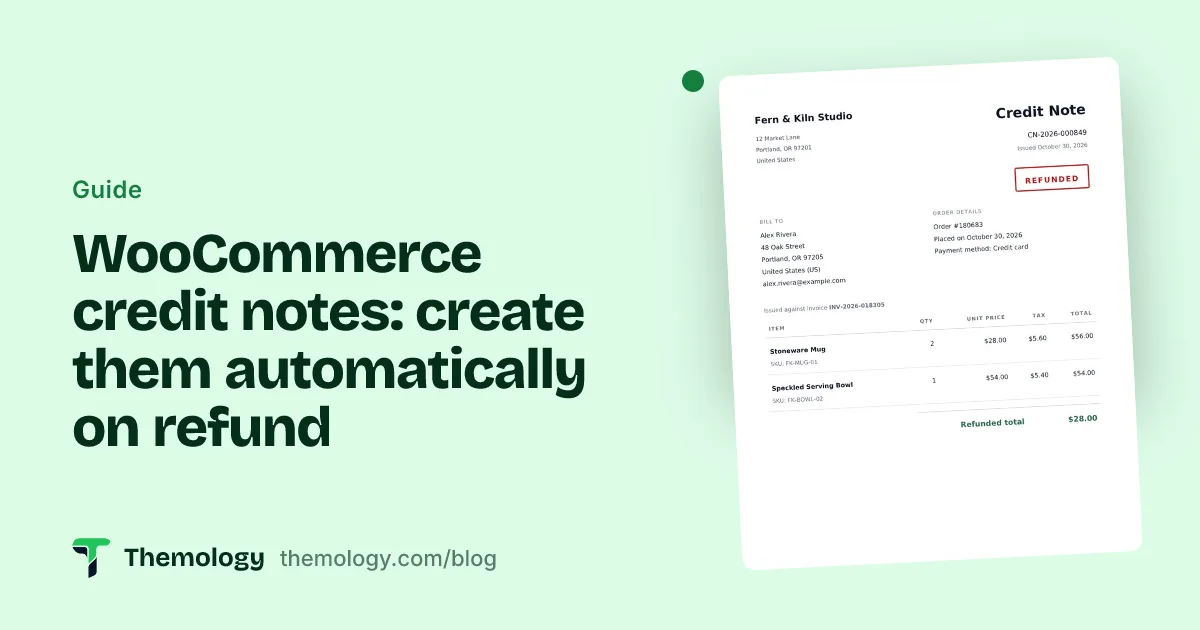
WooCommerce credit notes: create them automatically on refund
WooCommerce records refunds but never creates a credit note. What a credit note needs, and how to generate WooCommerce credit notes automatically on refund.
Read more →
Fix WooCommerce PayPal Payments reCAPTCHA conflicts
Your CAPTCHA plugin and the WooCommerce PayPal Payments reCAPTCHA can reject the same order. Why smart buttons and Block Checkout clash, and how to fix it.
Read more →