
 Nazmoon Munny 12 min read
WooCommerce credit notes: create them automatically on refund
WooCommerce records refunds but never creates a credit note. What a credit note needs, and how to generate WooCommerce credit notes automatically on refund.
The first version of Emboss, our invoice plugin, got partial refunds wrong. Refund one item from an order and it made no credit note, so the partially refunded email couldn’t carry one. A refund could also take the place of the paid invoice on the order, when the two should sit side by side.
We fixed both in version 1.0.2. Getting there meant working out exactly what a credit note has to do in a WooCommerce store, because WooCommerce itself doesn’t make one.
I searched the WooCommerce 11.2.1 source for “credit note” and got zero results. Core stores the refund as its own record and sends an email about it. It never produces a document that cancels or reduces the invoice you already sent.
For a small shop, it plays out like this. Say a customer orders three mugs, one arrives cracked, and you refund it from the order screen. WooCommerce records the refund, lowers the order total, and sends the customer a “Partially refunded” email. A month later your accountant asks for the credit note. There isn’t one.
So the paper trail breaks. The customer has an invoice for three mugs, your bank shows money going back out, and nothing on paper connects the two.
TLDR
A credit note is the document that reduces or cancels an invoice after a refund. WooCommerce core records refunds but doesn’t create credit notes, so you need a plugin. Emboss, our free plugin, creates one automatically on every full or partial refund, gives it its own number sequence, prints the original invoice number on it, and attaches it to the refund email.
What a credit note is#
A credit note is a document that says “we owe you this amount back” against an invoice you already issued. It’s the opposite of an invoice. The invoice asks for money. The credit note takes some or all of it back.
You don’t edit or delete the original invoice when you refund. Most accountants want that invoice left exactly as it was sent, with its number intact. The credit note sits next to it and adjusts the total. Read the two together and you get what the customer actually paid.
You’ll also see the names “credit memo” and “refund invoice”. Some plugins call it a “correction invoice”. The idea is the same: a second document, with its own number, that points back at the first one.
If you’re still sorting out the difference between an invoice and a receipt, my comparison of WooCommerce PDF invoice plugins covers that split and which plugins handle it.
When a WooCommerce store needs one#
The short answer: any time money goes back to a customer for an order that already had an invoice.
Full refunds#
The customer returns everything, or you cancel a paid order and give the money back. WooCommerce moves the order to the Refunded status. The original invoice still exists in your records, so you need a document that cancels it in full.
Partial refunds#
This is the case most stores miss. It’s the one we missed too, in Emboss 1.0.0. One item comes back. You refund shipping because the parcel was late. You give a goodwill discount after the sale. The order stays Processing or Completed, so nothing about its status tells your bookkeeping that the total changed.
A partial refund is still a change to an invoiced amount. It needs a credit note just as much as a full refund does, and I’d argue more, because it’s easier to lose.
When you probably don’t need one#
If an order was cancelled before anyone paid and before any invoice went out, there’s usually nothing to credit.
The tricky case is a bank transfer order that got an invoice number while it sat on hold, then never got paid. Ask your accountant how they want that invoice handled. Some want a credit note, others are happy with a note on the file.
Why WooCommerce doesn’t create credit notes#
WooCommerce was built to sell and ship, not to keep books. When you click Refund on an order, core does three things. It creates a refund record (the WC_Order_Refund class), updates the order totals, and sends the customer the Refunded order email. For a partial refund that same email goes out under the ID customer_partially_refunded_order.
None of those steps produce a PDF. The same goes for invoices: WooCommerce core doesn’t generate PDF invoices either. Order emails carry an HTML summary of the order, and that’s the end of it.
That gap is why WooCommerce refund invoice and credit note plugins exist. The plugin has to listen for the refund, create the document, number it, and get it to the customer and your accountant.
What a WooCommerce credit note should show#
Rules for credit notes vary by country, and some places have very specific requirements for VAT or GST. I’m not an accountant, so treat this as a starting list to check with yours, not legal advice.
Most credit notes carry:
- The words “Credit note” as the title, so nobody mistakes it for a new invoice.
- Its own number, usually from a separate sequence.
- The date it was issued.
- The number of the invoice it relates to.
- Your business name, address, and tax or VAT number if you have one.
- The customer’s name and address.
- What was refunded and the amount, including tax where it applies.
The fourth item is where most homemade setups fall down. A credit note without a reference to the original invoice is a loose piece of paper.
How to generate credit notes automatically with Emboss#
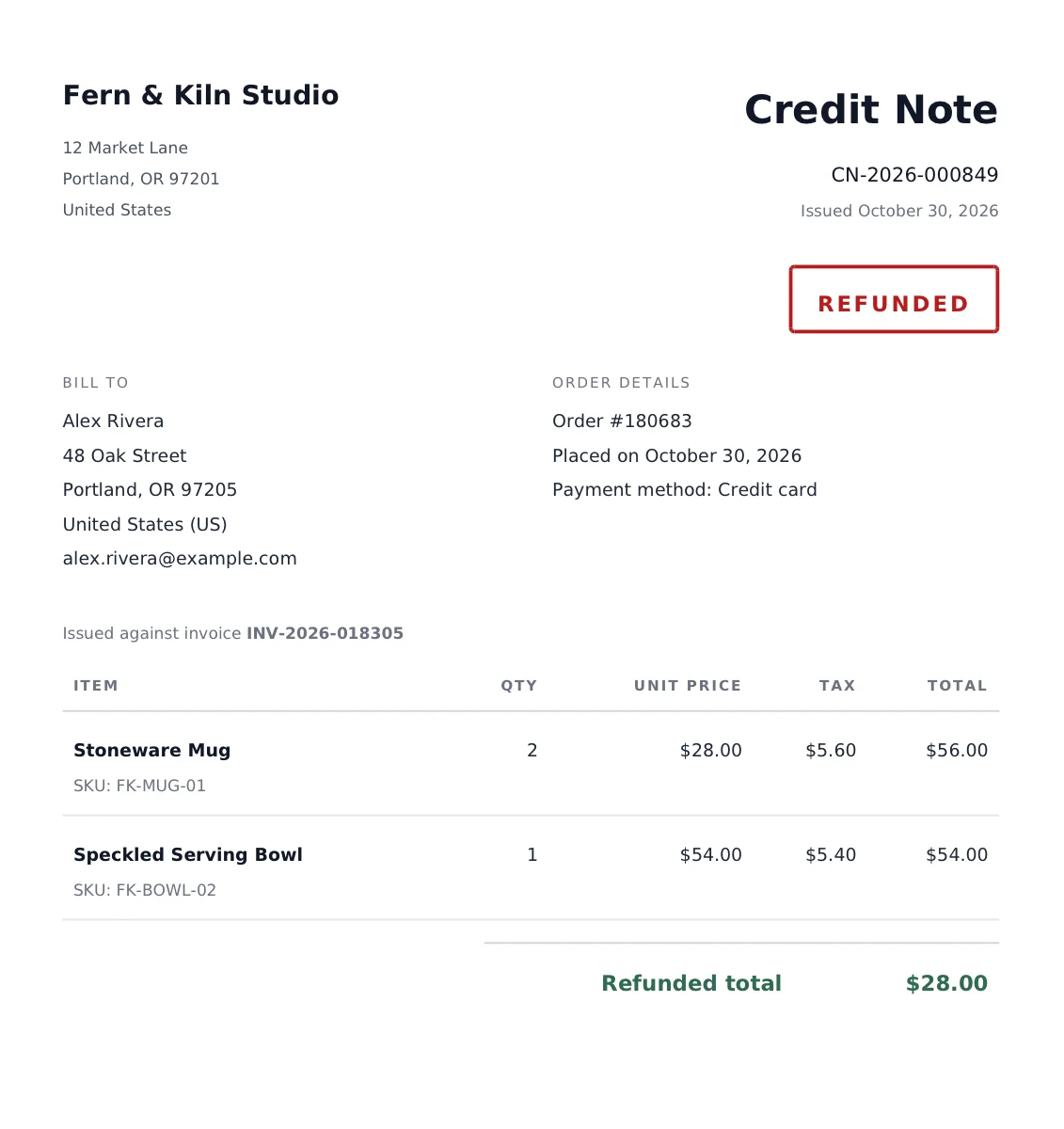
Emboss is our plugin, so I’m biased. It’s free on WordPress.org and has no paid tier. I tested this on a store running Emboss 1.0.2: a two-item order, a partial refund for one returned mug, and the credit note it produced, which you can see below. The rest comes from the plugin’s code.
What happens when you refund#
Emboss hooks into woocommerce_order_refunded, which fires on every refund, full or partial. When it fires, Emboss checks whether the order has any refunded amount and, if it does, creates or updates the credit note. You don’t press anything. Refund the order the normal way and the PDF exists.
Fully refunded orders always get a credit note, whatever you’ve picked for the Document type mode setting. “Always invoice” and “Always receipt” only apply to orders that aren’t refunded.
Each order keeps its documents as separate files. The paid invoice or receipt stays as it was, and the credit note sits beside it. That’s the second fix from 1.0.2, and it matters when an accountant asks for both.
One credit note per order, kept up to date#
Emboss makes one credit note per order, and it shows the total refunded across every refund on that order. If you refund $10 today and another $15 next week, the credit note is re-rendered to show $25. It keeps the same number and the same issue date.
Emboss checks whether the refunded total has changed since the PDF was last built, and only rebuilds when it has.
Some accountants want a separate credit note for each refund instead. Emboss doesn’t do that at the moment. I know the cumulative version won’t suit every accountant, so if yours needs one document per refund event, ask them before you rely on it.
What’s on the credit note#
The template prints:
- The title “Credit Note” and the credit note number in the header.
- The issue date.
- A “Refunded” badge.
- The line “Issued against invoice” followed by the original invoice number, when the order had an invoice.
- The order items table.
- A “Refunded total” row with the amount refunded, in the order’s currency.
- The customer note, if the order has one.
- Your footer: registered office details, tax or VAT number, company registration number, and footer text, when you’ve filled those in.
Your terms and conditions text only shows on invoices by default. Tick “Show on all documents” on the Legal tab to add it to credit notes and receipts too.
Credit note numbering#
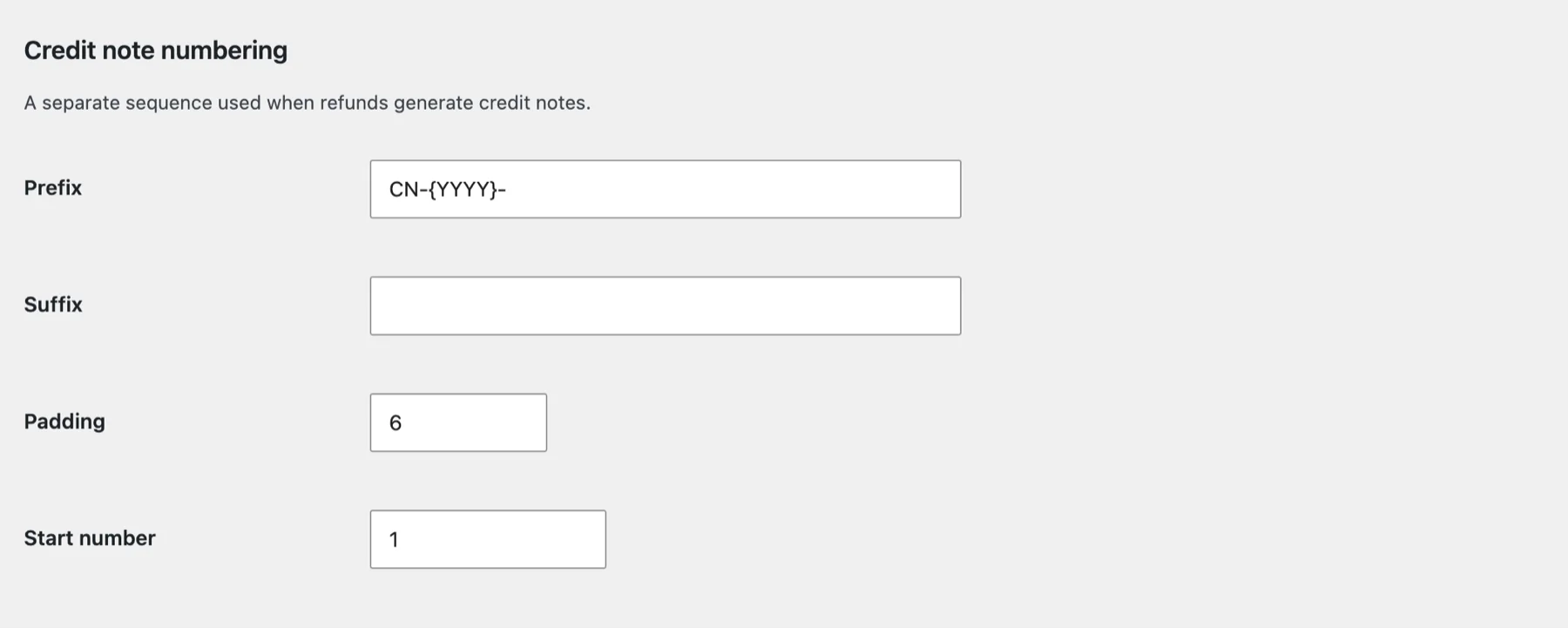
Credit notes get their own sequence under WooCommerce > Settings > Invoices > Numbering, in the “Credit note numbering” section. Invoice numbers and credit note numbers never collide.
The defaults are a prefix of CN-{YYYY}-, no suffix, 6 digits of padding, and a start number of 1, so your first credit note reads CN-2026-000001. The prefix and suffix accept {YYYY}, {YY}, {MM}, and {DD}. Once a credit note has a number, that number is fixed. Changing the prefix later won’t rewrite credit notes you already issued.
The counter uses the same database-locked increment as invoices, so two refunds at the same moment can’t share a number. Our numbering docs explain how the lock works.
The credit note sequence has one gap in 1.0.2. The yearly reset option (“Reset every year”) exists for invoices only, so credit notes don’t restart each year. If your country expects credit notes to restart every January, use {YYYY} in the prefix and confirm with your accountant whether a continuous count is acceptable.
Emails and downloads#
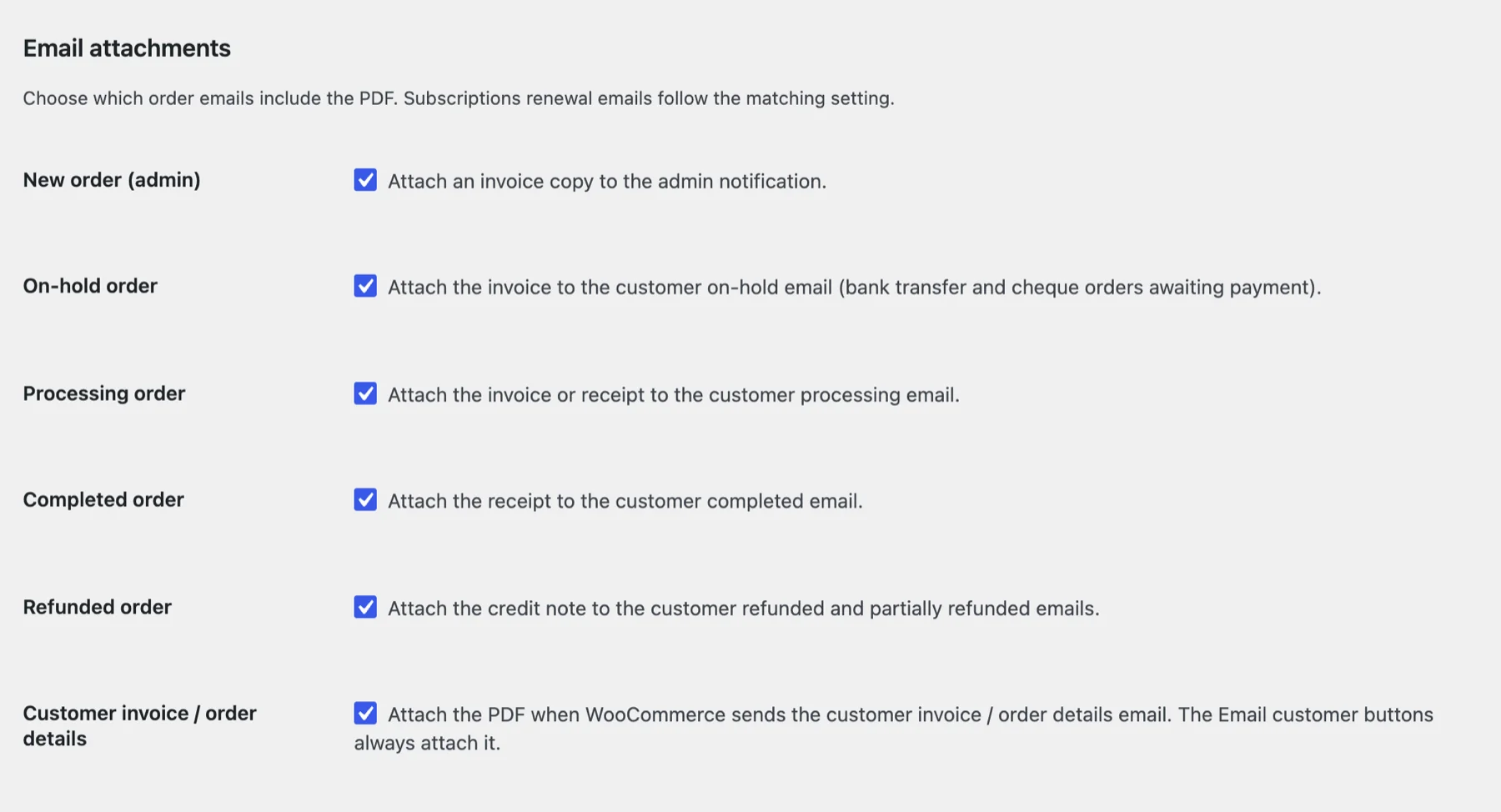
On the Emails tab, the “Refunded order” setting attaches the credit note to both the customer refunded email and the partially refunded email. It’s on by default. The “Delivery method” setting decides whether customers get the PDF as an attachment, a download link, or both.
Customers can also get the credit note themselves. When an order has one, My Account and the order received page show a “Download credit note” button next to the invoice button. See customer downloads for how guest access works.
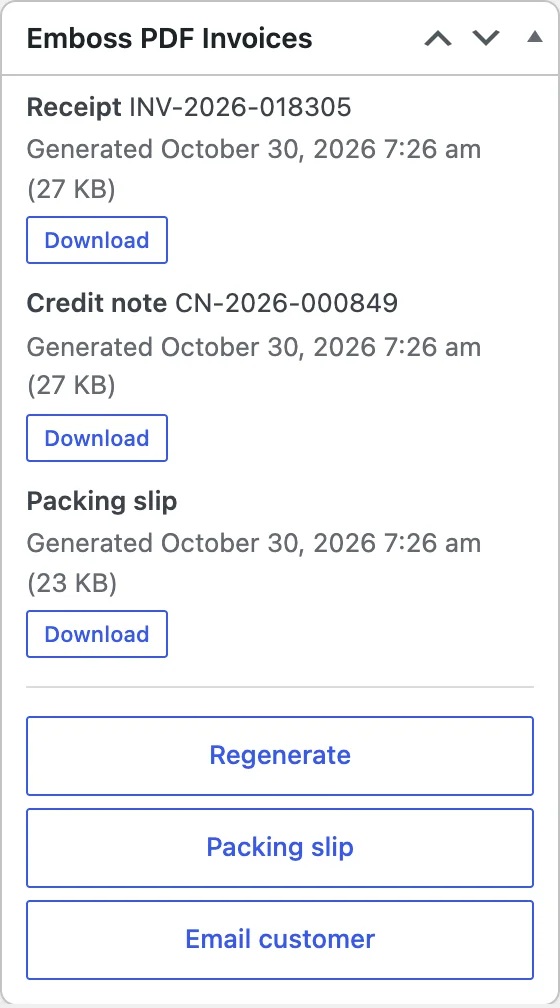
In the admin, the Emboss box on the order screen lists every document for the order. The Regenerate button refreshes the invoice or receipt and the credit note together. The CSV export on the Advanced tab includes a credit note number column, which is handy at month end.
How to customize WooCommerce credit notes#
Most of the look comes from settings. You only need code for structural changes.
Settings that change the credit note#
- Template style (Branding tab): Modern, Classic, Minimal, or Thermal (80mm POS receipt printer). The Thermal style has its own credit note layout for receipt printers.
- Company logo, Company name, and Company address (Branding tab).
- Accent colour (Branding tab), used for headings and totals.
- Footer text (Branding tab), shown at the bottom of every document.
- Tax / VAT number, Company registration number, Registered name, and Registered address (Legal tab).
- Date format and Paper size (General tab).
Changes apply to new PDFs. To refresh credit notes you already issued, use Regenerate on the order or the “Regenerate PDFs” bulk action on the orders list. The number and issue date stay as they were.
Override the template in your theme#
For layout changes, copy the plugin’s templates/credit-note.php into your theme at your-theme/emboss-pdf-invoices/credit-note.php and edit the copy. Theme overrides survive plugin updates. Emboss checks a variant folder first, so a Classic-only change goes in your-theme/emboss-pdf-invoices/classic/credit-note.php.
Inside the template you have $document (the credit note object) and $order (the WooCommerce order). The two methods you’ll reach for most are $document->original_invoice_number() and $document->refund_total(). The templates docs list the shared partials you can override one at a time.
Change the badge text with a filter#
Some stores want the badge to say “Credit” instead of “Refunded”. Add this to your child theme’s functions.php or a code snippets plugin like WPCode:
// Change the "Refunded" badge on Emboss credit notes.
add_filter( 'epdi_refunded_badge_text', function ( $text, $order ) {
    return 'Credit';
}, 10, 2 );
Then regenerate one credit note to check it. For CSS tweaks, the epdi_pdf_css filter passes you the stylesheet and the active variant.
Other WooCommerce credit note plugins#
Emboss isn’t the only option. These all list credit notes in their WordPress.org descriptions. Install counts are from WordPress.org as of October 29, 2026.
- PDF Invoices & Packing Slips for WooCommerce by WP Overnight (300,000+ active installs). Credit notes come with the premium Professional extension, not the free plugin.
- WebToffee WooCommerce PDF Invoices, Packing Slips, Delivery Notes & Shipping Labels (50,000+). Credit notes are marked Pro. The Pro version attaches the credit note to the refund email.
- Print Invoice & Delivery Notes for WooCommerce by Tyche Softwares (30,000+). Its description lists credit notes next to invoices, receipts, and delivery notes.
- Challan by WebAppick (7,000+). “Credit notes for refunds” is in the Pro feature list.
- PDF Invoices and Packing Slips For WooCommerce by Acowebs (1,000+). Credit note generation is a Pro feature.
If you already run one of these for invoices, check its credit note option before adding a second invoicing plugin. Two plugins numbering the same orders is a mess to untangle.
Frequently asked questions#
Does WooCommerce create credit notes on its own?#
No. WooCommerce records refunds and sends refund emails, but it doesn’t generate credit notes or PDF invoices. You need a plugin for both.
Do I need a credit note for a partial refund?#
In most cases, yes. A partial refund changes the amount of an invoice you already sent, and the credit note is the record of that change. Your accountant can confirm what your country expects.
Can a credit note reuse the invoice number?#
Usually not. Most stores give credit notes their own sequence, like CN-2026-000001, and print the original invoice number on the credit note. Emboss keeps the two sequences separate.
What happens if I refund the same order twice?#
Emboss updates the order’s single credit note to show the new total refunded. It keeps the same credit note number and issue date. If you need one credit note per refund, Emboss can’t do that at the moment.
Can customers download their own credit notes?#
With Emboss, yes. When an order has a credit note, My Account and the order received page show a “Download credit note” button, and the refund emails carry the PDF by default.
Is a refund invoice the same as a credit note?#
People use “refund invoice” to mean a credit note most of the time. Some countries have their own name, like a correction invoice. If your accountant uses a specific term, put that term in the document title through a template override.
Where to start#
If I were setting this up today, I’d test the case we got wrong first. Install Emboss on a staging copy, place a test order, and refund one line item.
Check that the credit note shows the right original invoice number and the right refunded total, then send that PDF to your accountant before you go live. Their answer on cumulative versus per-refund credit notes decides whether the default setup fits your store.
If your shop also ships physical goods, my guide to WooCommerce packing slips covers the warehouse side. And if you take bank transfers for B2B orders, the WooCommerce proforma invoice guide covers the document that comes before the invoice. Emboss is free on WordPress.org, and the full setup lives in the Emboss documentation.
Plugin we built for this
We didn't just write about it. We built something for it.
Keep reading
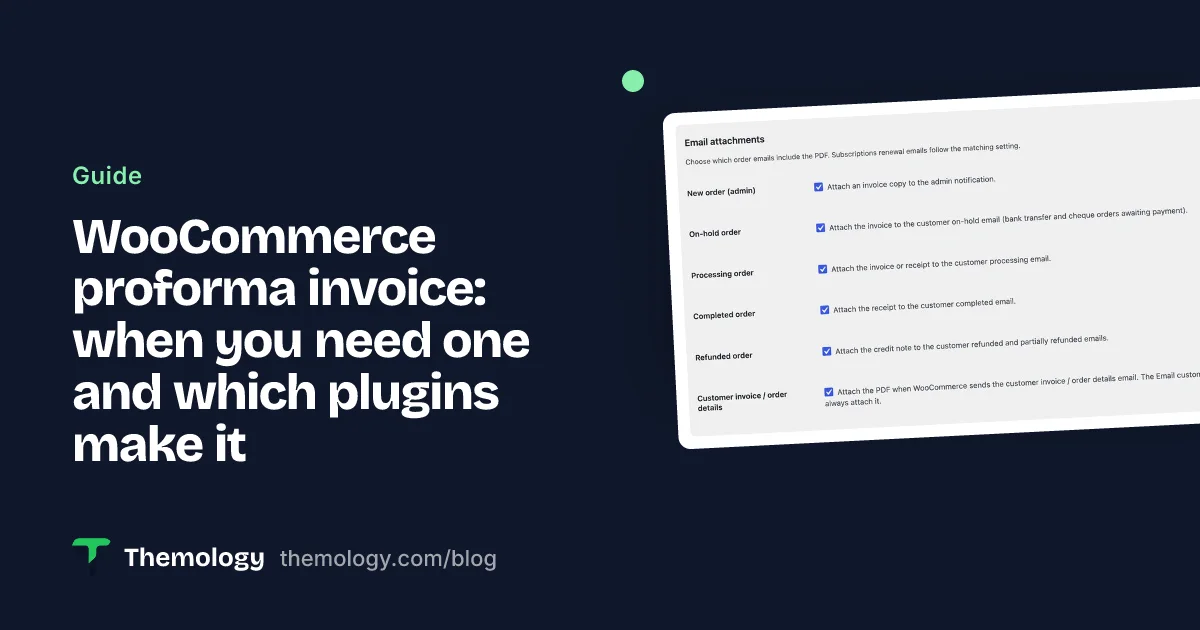
WooCommerce proforma invoice: when you need one and which plugins make it
What a WooCommerce proforma invoice is, when B2B and bank transfer stores need one, and which plugins generate it, checked against their WordPress.org pages.
Read more →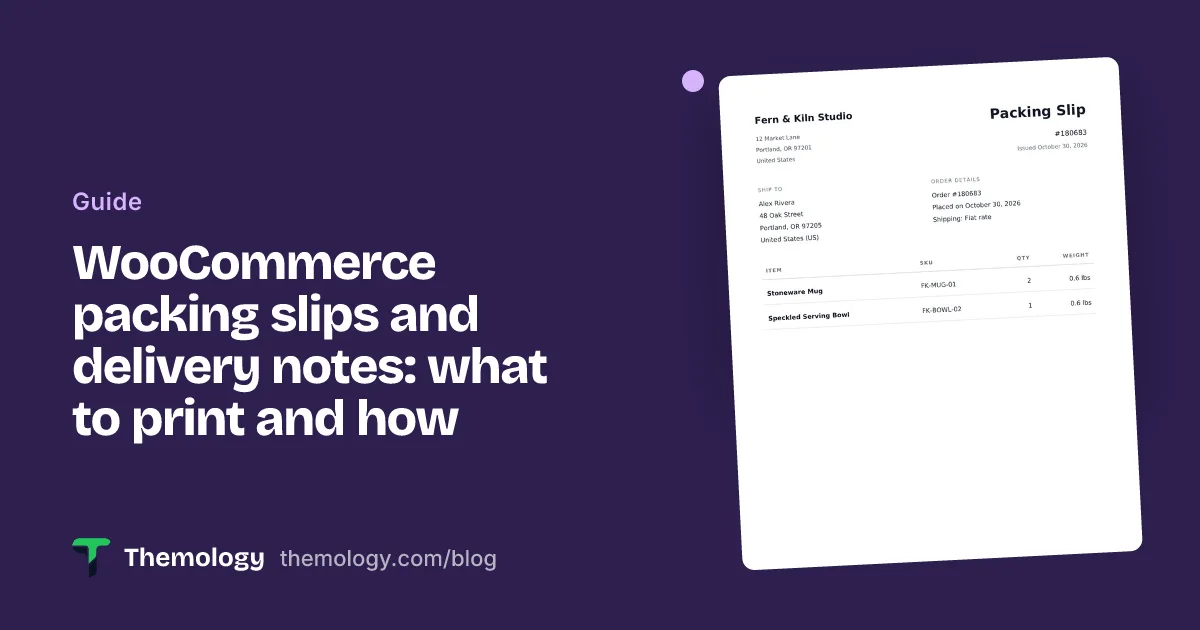
WooCommerce packing slips and delivery notes: what to print and how
Packing slip vs delivery note vs invoice, what a WooCommerce packing slip should show, why it leaves prices out, and how to bulk print them from your orders.
Read more →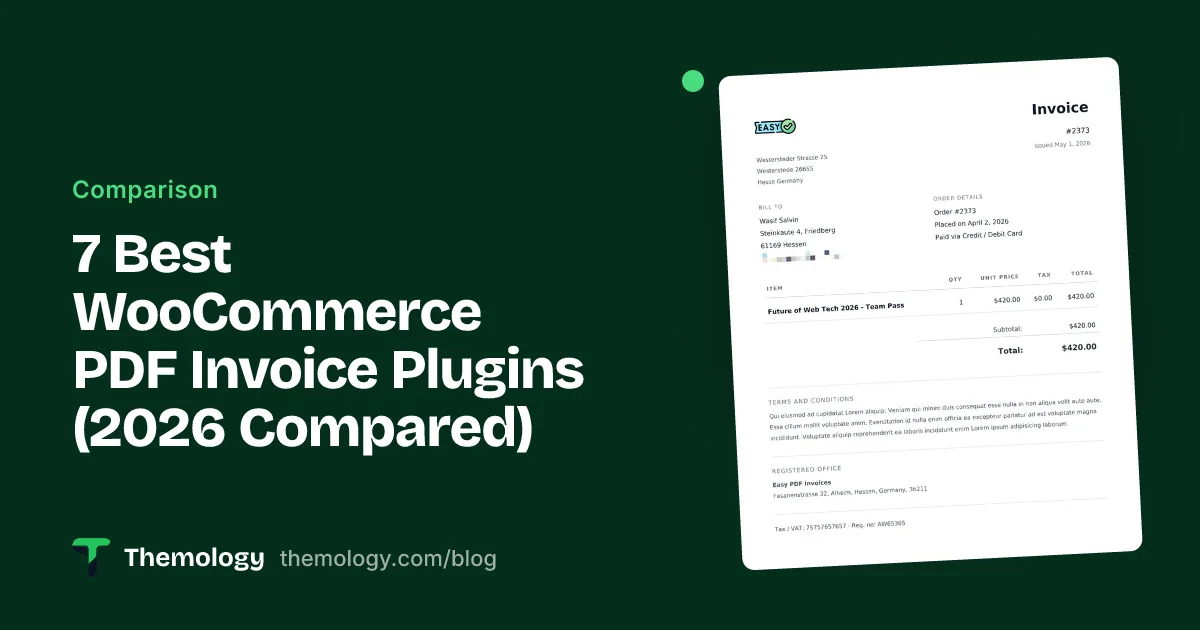
7 Best WooCommerce PDF Invoice Plugins (2026 Compared)
I tested the 7 best WooCommerce PDF invoice plugins on one HPOS store. Most charge for credit notes and extra templates. What each one gives you for free.
Read more →