
 Nazmoon Munny 12 min read
How to Add CAPTCHA to WooCommerce Checkout (Without Breaking Payments)
My 9-step setup for CAPTCHA on WooCommerce checkout, with the Block Checkout, PayPal and Apple Pay tests that keep real orders coming in.
Adding a CAPTCHA to a WooCommerce checkout is mostly pasting two keys into a settings page. The part that goes wrong is what happens after. A checkout can place an order in at least three different ways, and a CAPTCHA that only knows one of them can block the other two.
I built Bouncer, my CAPTCHA plugin, because the existing options kept breaking on my own test stores. So this guide spends as much time on the checks before and after setup as on the setup itself. Those checks are what keep PayPal and Apple Pay orders coming in.
TLDR
First check whether your store uses Block Checkout, whether WooCommerce PayPal Payments already runs its own reCAPTCHA, and which express payments you take. Then pick a provider (Cloudflare Turnstile for most stores), get its keys, and turn on checkout protection in a CAPTCHA plugin that supports Block Checkout. Skip PayPal’s protected gateways and the express wallets, then test every payment method as a logged-out guest.
If you’re still choosing a plugin, my comparison of 7 WooCommerce CAPTCHA plugins covers that part. This post is the setup.
Step 1: Check which checkout your store uses#
Open your checkout page in the page editor. If you see a “Checkout” block, you’re on Block Checkout. If you see the [woocommerce_checkout] shortcode, you’re on Classic Checkout.
This matters because not every CAPTCHA plugin supports both. Some only add the CAPTCHA to Classic Checkout and do nothing on Block Checkout, which leaves your store unprotected without any warning.
Block Checkout talks to WooCommerce’s Store API, not a classic PHP form. A plugin that only hooks into woocommerce_checkout_process never runs there, because that hook doesn’t fire on Block Checkout.
WooCommerce made the Cart and Checkout blocks the default for new stores in version 8.3 (November 2023). If you created your store after that and didn’t change the checkout page, you’re almost certainly on Block Checkout.
Step 2: Check whether PayPal Payments already runs reCAPTCHA#
If you use the official WooCommerce PayPal Payments plugin, it may already have its own CAPTCHA. Check WooCommerce > Settings > Integration > WooCommerce PayPal Payments reCAPTCHA.
The check only switches on when it’s enabled and both reCAPTCHA v3 and v2 keys are filled in. It uses v3 in the background and shows a v2 checkbox when the score is low, as PayPal’s fraud protection docs explain. It only covers four PayPal gateways, and its Guest Orders Only option ships switched on.
If it’s on, your CAPTCHA plugin and PayPal can both try to verify the same order, and one of them usually fails. You’ll handle that in step 7. Write down that it’s on.
Step 3: List the express payments you take#
Apple Pay, Google Pay and Amazon Pay use their own wallet authentication (Face ID, Touch ID, device PIN). They skip the checkout form and submit through the Store API. A CAPTCHA widget on the form has no effect on them, and forcing a CAPTCHA check on these orders breaks the wallet.
You don’t need to solve this yourself. Your CAPTCHA plugin should spot these methods and skip them, since the wallet already does its own check. Make a note of which ones you have, so you can test each one in step 8.
Step 4: Pick a CAPTCHA provider#
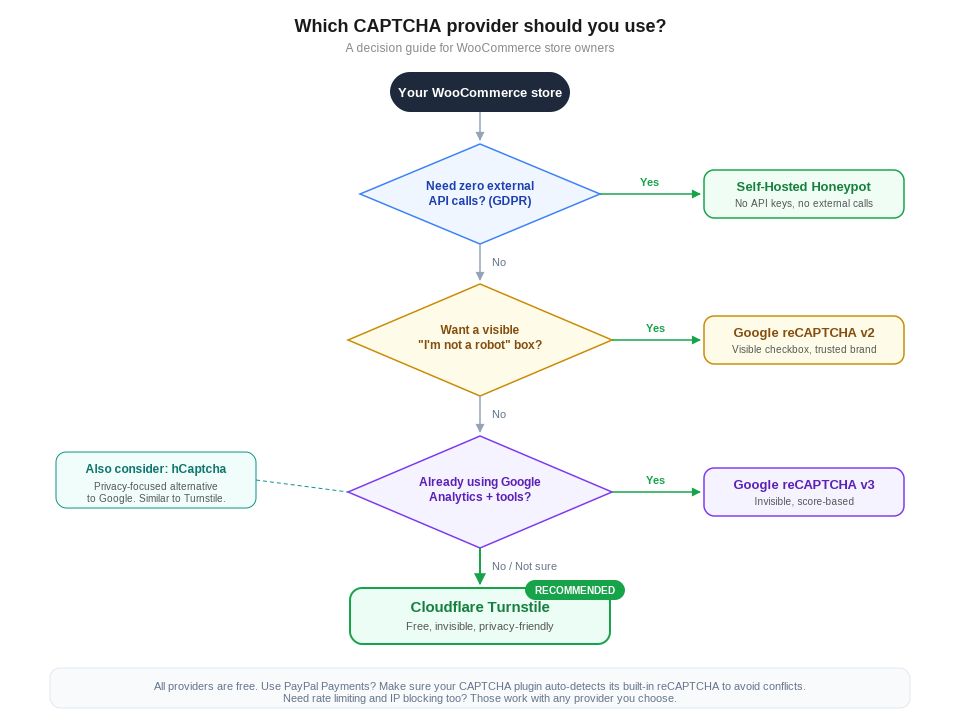
There are five practical options for a WooCommerce checkout.
| Provider | Visibility | User friction | External service | API keys | Best for |
|---|---|---|---|---|---|
| Cloudflare Turnstile | Usually invisible | Very low | Cloudflare | Yes (free) | Most stores |
| Google reCAPTCHA v3 | Invisible | None | Yes (free) | Stores already on Google tools | |
| Google reCAPTCHA v2 | Visible checkbox | Medium | Yes (free) | Visible verification | |
| hCaptcha | Invisible or challenge | Low to medium | hCaptcha | Yes (free) | Privacy-focused stores |
| Honeypot | Invisible | None | None | No | GDPR-strict, no external calls |
My pick for most stores: Cloudflare Turnstile. It’s free with no usage limits, privacy-friendly (Cloudflare doesn’t use the data for ad targeting), and invisible to most visitors. It runs browser challenges in the background, so real customers rarely see anything.
If you’re in the EU and want zero external data transfers, go with a honeypot. No API calls, no cookies, no data leaving your server. If you want visible proof that protection is on (some store owners like the deterrent), reCAPTCHA v2 is the most recognized.
If step 2 showed PayPal’s reCAPTCHA is on, I’d avoid Google reCAPTCHA for your own plugin. PayPal already loads Google’s script, and two copies with different keys clash. Turnstile or hCaptcha sidesteps that.
Step 5: Get your API keys#
Skip this step if you picked the honeypot. It doesn’t need keys.
Cloudflare Turnstile#
- Go to dash.cloudflare.com/turnstile. You need a free Cloudflare account, but your site doesn’t need to be proxied through Cloudflare.
- Click Add widget.
- Enter a name (your store name) and add your domain.
- Select Managed mode. This lets Cloudflare decide when to show the widget and when to run invisible challenges.
- Copy the Site Key and Secret Key.
Google reCAPTCHA v3#
- Go to google.com/recaptcha/admin/create.
- Enter a label (anything descriptive).
- Select reCAPTCHA v3 (not v2).
- Add your domain or domains. Include both
wwwand non-wwwif you use both. - Accept the terms and click Submit.
- Copy the Site Key and Secret Key.
hCaptcha#
- Go to dashboard.hcaptcha.com/signup.
- Create an account and add your site.
- Copy the Site Key (UUID format, looks like
a1b2c3d4-e5f6-...). - Copy the Secret Key from your account settings.
hCaptcha can run in invisible mode or show image challenges when it sees suspicious behavior. The provider decides on its own.
Step 6: Install a CAPTCHA plugin and turn on checkout protection#
You need a WooCommerce CAPTCHA plugin that supports your provider and Block Checkout. Three that support Turnstile:
- Simple Cloudflare Turnstile: free, Turnstile-only, works with WooCommerce forms including Block Checkout.
- Bouncer - reCAPTCHA & Fraud Protection for WooCommerce: mine, so factor in my bias. It supports all five providers, includes fraud scoring and rate limiting, and detects PayPal’s reCAPTCHA on its own.
- reCaptcha Integration for WooCommerce: a WooCommerce Marketplace plugin that supports Turnstile as of 2026.
Then configure it:
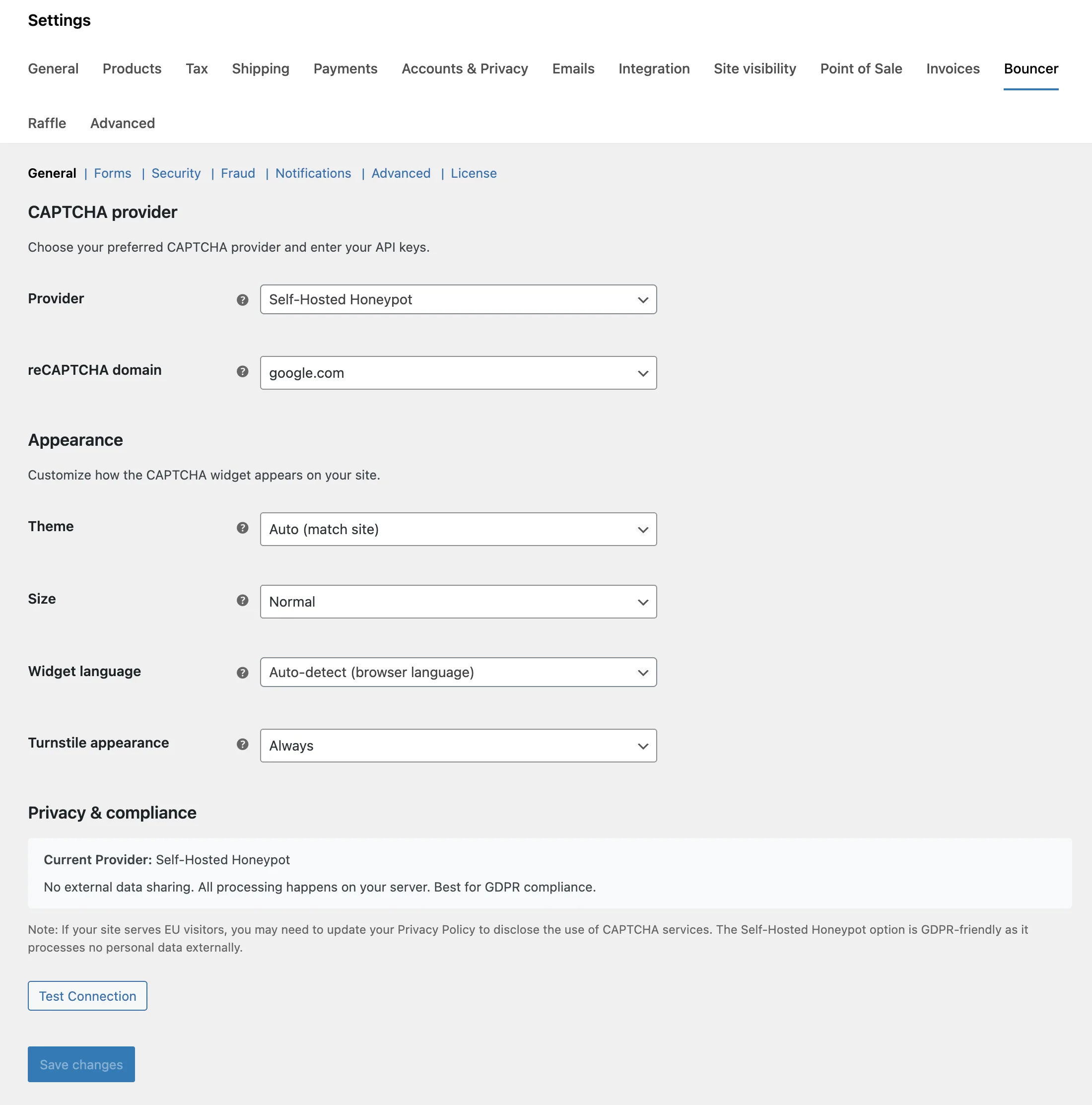
- Open the plugin’s settings. In Bouncer that’s WooCommerce > Settings > Bouncer. Other plugins use a similar spot.
- Select your provider.
- Paste your Site Key and Secret Key.
- Turn on protection for Checkout, both Classic and Block if the plugin lists them separately.
- Save.
For a honeypot, pick a plugin that includes one. A single hidden field isn’t enough anymore.
A good honeypot stacks layers: fields injected with JavaScript (bots that don’t run JavaScript miss them), a timing check (forms sent in under 3 seconds are almost certainly automated, and that’s Bouncer’s default), nonce protection against replayed submissions, and a math challenge the browser solves. Bouncer’s honeypot has seven layers.
Honeypots are weaker against bots that run JavaScript and wait before submitting, so for a store under an active carding attack, pair it with rate limiting (step 9) or use an external provider.
If you picked reCAPTCHA v3, set the score threshold#
reCAPTCHA v3 gives every visitor a score from 0.0 (definitely a bot) to 1.0 (definitely human). The threshold is the lowest score that passes.
- 0.3: permissive. Lets most traffic through, and some bots may pass.
- 0.5: the default, and a good balance for most stores.
- 0.7: strict. May block shoppers on VPNs, corporate networks or Tor.
Start at 0.5. If you still see spam orders, try 0.6. If customers say checkout fails, drop to 0.4. Your plugin’s logs show the scores your visitors actually get.
Step 7: Keep PayPal and express payments out of the CAPTCHA#
This is the most common reason a CAPTCHA breaks WooCommerce checkout. If step 2 showed PayPal’s reCAPTCHA is on, two plugins now verify the same PayPal order.
The collision usually comes from timing. On the classic checkout, clicking a PayPal smart button runs WooCommerce’s checkout validation early, before the PayPal window opens.
A CAPTCHA plugin that verifies on that validation step spends its single-use token there, then fails when the order is placed after the customer comes back from PayPal. A second copy of Google’s reCAPTCHA script can break things too.
I mapped every point where the two checks meet in how to fix WooCommerce PayPal Payments reCAPTCHA conflicts, with the network requests to look at when an order fails.
You have three ways to handle it:
- Let your CAPTCHA plugin skip PayPal’s protected gateways. Bouncer reads PayPal’s
woocommerce_ppcp-recaptcha_settingsoption and skips PayPal methods on its own when PayPal’s reCAPTCHA is on with both keys. Stripe, bank transfers and your other gateways keep the CAPTCHA. With other plugins, add the four gateway IDs to their skip list by hand:ppcp-gateway,ppcp-credit-card-gateway,ppcp-card-button-gatewayandppcp-axo-gateway. - Use only PayPal’s reCAPTCHA at checkout. Turn off checkout protection in your CAPTCHA plugin. This is fine if PayPal is your only gateway, but any other gateway loses its CAPTCHA.
- Turn off PayPal’s reCAPTCHA and use your plugin everywhere. This only works if your plugin verifies at final submit and not during PayPal’s early validation.
I’d take the first one. It protects every gateway, and each order gets checked once.
Add the express wallets to the same skip list if your plugin doesn’t detect them. That includes PayPal’s own Apple Pay and Google Pay (ppcp-applepay, ppcp-googlepay).
Step 8: Test every way a customer can pay#
Adding a CAPTCHA and assuming it works is the mistake I’d most want you to avoid. Every test below runs in a private window, logged out. PayPal’s Guest Orders Only option means a logged-in admin skips PayPal’s check entirely, so a test as admin proves nothing.
Basic test#
- Open the store in a private browser window.
- Add a product to the cart and go to checkout.
- Fill out the form and complete an order.
- If the order goes through, the CAPTCHA let a real submission pass.
You might see a Turnstile widget flash and resolve itself, or nothing at all. If the order fails with a CAPTCHA error, check that your domain matches exactly what you registered with the provider, including www or non-www.
Block Checkout test#
- Open your browser’s developer tools (F12) on the Network tab.
- Complete an order and find the
POSTrequest to/wc/store/v1/checkout. - Open the request and look at its payload.
- Find the
extensionskey. Your CAPTCHA plugin should send its token there, under its own name.
If extensions is empty or your plugin’s key isn’t there, the CAPTCHA isn’t wired into Block Checkout, even if a widget shows on the page.
PayPal test#
- Select PayPal as the payment method.
- Complete the PayPal flow.
- If the order completes without a CAPTCHA error, the PayPal skip is working.
- Switch to a non-PayPal method (Stripe, cash on delivery) and complete another order. The CAPTCHA should still check it.
Express payment test#
- If you have Apple Pay or Google Pay, complete a test order with each.
- They should complete without any CAPTCHA getting in the way.
Step 9: Turn on rate limiting#
A CAPTCHA stops bots at the form. Rate limiting stops them at the IP address. Together they’re stronger than either one alone.
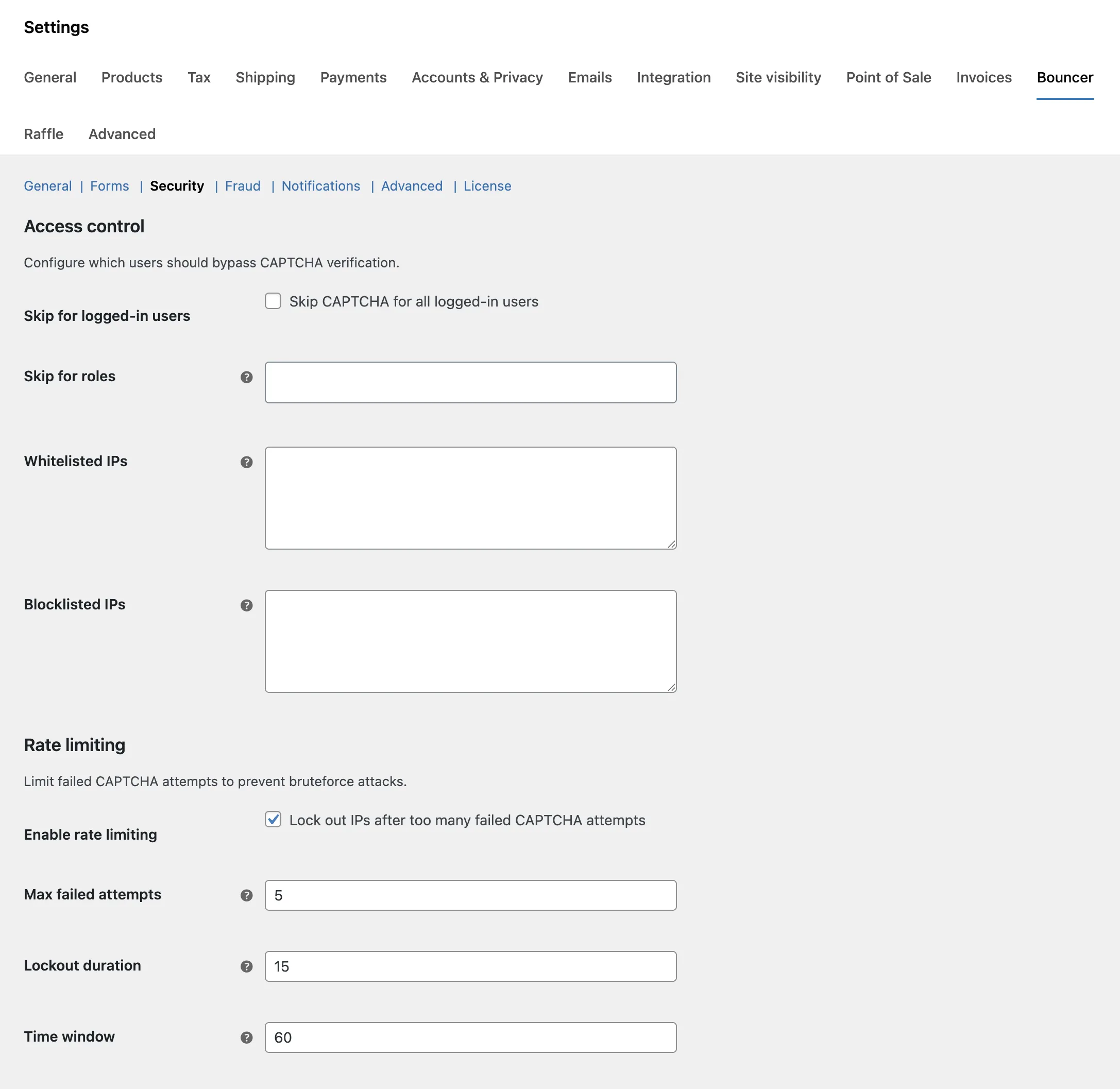
Rate limiting counts failed CAPTCHA attempts per IP address. After a set number of failures, the IP is locked out for a while, so a bot that sometimes gets past the CAPTCHA still gets caught when it keeps trying.
If your CAPTCHA plugin includes rate limiting, turn it on. In Bouncer it ships switched off, and the defaults are 5 failed attempts within 60 minutes and a 15-minute lockout, as the rate limiting docs explain. If your plugin doesn’t have it, look at Cloudflare rate limiting rules or a WordPress security plugin with IP lockouts.
For the layers beyond CAPTCHA, see my guide on how to stop fake orders in WooCommerce.
Common mistakes that break checkout#
Running two CAPTCHA plugins#
This happens more than you’d think. A security plugin like Wordfence or Kadence Security may add its own CAPTCHA to the login form. Running that next to a WooCommerce CAPTCHA plugin on the same form causes conflicts. Pick one and turn off the other’s CAPTCHA on the forms they share.
Caching stale CAPTCHA tokens#
CAPTCHA tokens expire. If your page cache serves a cached checkout page, the token in that HTML is stale, and verification fails for every visitor.
Exclude your checkout and My Account pages from page caching. Most caching plugins do this for WooCommerce already, but check your settings if CAPTCHA fails for everyone.
Forgetting to protect Block Checkout separately#
Some plugins have separate settings for “Classic Checkout” and “Block Checkout”. If you only turn on Classic and your store uses Block Checkout, there’s no protection. Turn on both.
Setting the reCAPTCHA v3 threshold too high#
A threshold of 0.7 or higher blocks real shoppers on VPNs, corporate networks, shared Wi-Fi and privacy browsers. Start at 0.5 and adjust based on what your logs show.
Frequently asked questions#
Does CAPTCHA hurt checkout conversion rates?#
It depends on the provider. Invisible options (Turnstile, reCAPTCHA v3, a honeypot) add no friction, because the shopper doesn’t see or click anything. A visible reCAPTCHA v2 checkbox adds one click. I haven’t found a study I trust on what that one click costs, so I’d measure it on your own store before and after.
Trust matters at checkout too. Baymard Institute’s checkout abandonment research puts “I didn’t trust the site with my credit card information” third among reasons shoppers give for leaving, at 19%.
Can I use CAPTCHA on checkout and still support guest checkout?#
Yes. The CAPTCHA protects the form submission, not account creation. Guest customers fill out the checkout form and pass the CAPTCHA just like logged-in customers. Some CAPTCHA plugins let you skip verification for logged-in users, which removes friction for returning customers.
My CAPTCHA plugin says it supports WooCommerce. Does that mean Block Checkout?#
Not necessarily. “WooCommerce support” often means Classic Checkout support. Block Checkout needs a different integration (a Store API extension instead of PHP hooks). Check whether the plugin names “Block Checkout” or “Checkout block” support. If its docs only show Classic Checkout screenshots, assume it doesn’t work with Block Checkout.
Does Cloudflare Turnstile require my site to be on Cloudflare?#
No. You need a free Cloudflare account to get the keys, but your site’s DNS doesn’t need to be on Cloudflare. Turnstile works on any domain.
Which CAPTCHA provider is most GDPR-compliant?#
A self-hosted honeypot, since no data leaves your server. Among external providers, Cloudflare Turnstile and hCaptcha both have strong privacy positions and publish GDPR documentation. Google reCAPTCHA is the least privacy-friendly option because it sends data to Google’s servers.
How do I know if my store is under a carding attack?#
Look for a sudden spike in failed orders (especially small amounts like $0.50 to $5.00), several orders from the same IP in minutes, obviously fake billing details, and warnings from your payment processor about unusual activity. My WooCommerce security checklist covers detection and response.
Should I add CAPTCHA to forms beyond checkout?#
Start with checkout, the highest-risk form, then add login and registration. Those three cover the most common attacks. Comment protection helps if you run a blog with open comments. The Bouncer docs list which forms Bouncer can protect.
What I’d set up first#
If you want a quick setup that works, install Simple Cloudflare Turnstile (free, works with Block Checkout) and you’re covered for basic protection. If you need more (fraud scoring, rate limiting, IP blocking, geo-blocking, PayPal detection, several providers), that’s what I built Bouncer for.
Whichever you pick, the last step is the one that counts. Open a private window, stay logged out, and place one order with every payment method you take. For the rest of store security, my security checklist goes from checkout protection to REST API lockdown.
Plugin we built for this
We didn't just write about it. We built something for it.
Keep reading
Fix WooCommerce PayPal Payments reCAPTCHA conflicts
PayPal Payments has its own reCAPTCHA, and it can clash with your CAPTCHA plugin. I mapped where each check runs and how to fix failed orders.
Read more →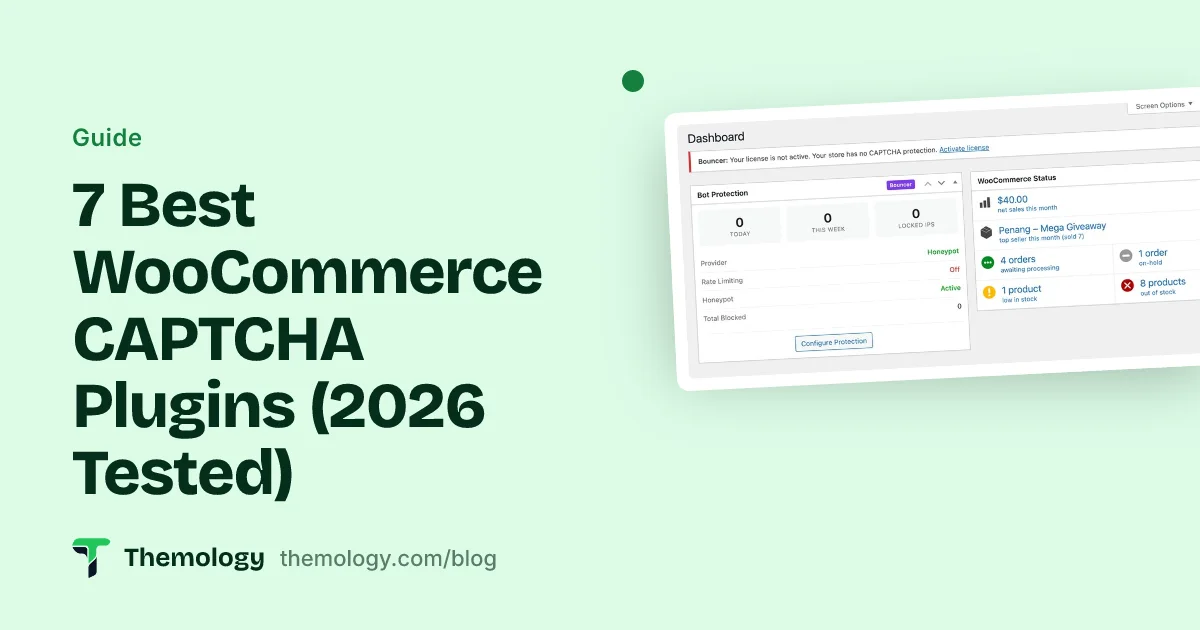
7 Best WooCommerce CAPTCHA Plugins (2026 Tested)
I put 7 WooCommerce CAPTCHA plugins side by side on Block Checkout, PayPal Payments and rate limiting. What each one protects, and the one I'd pick.
Read more →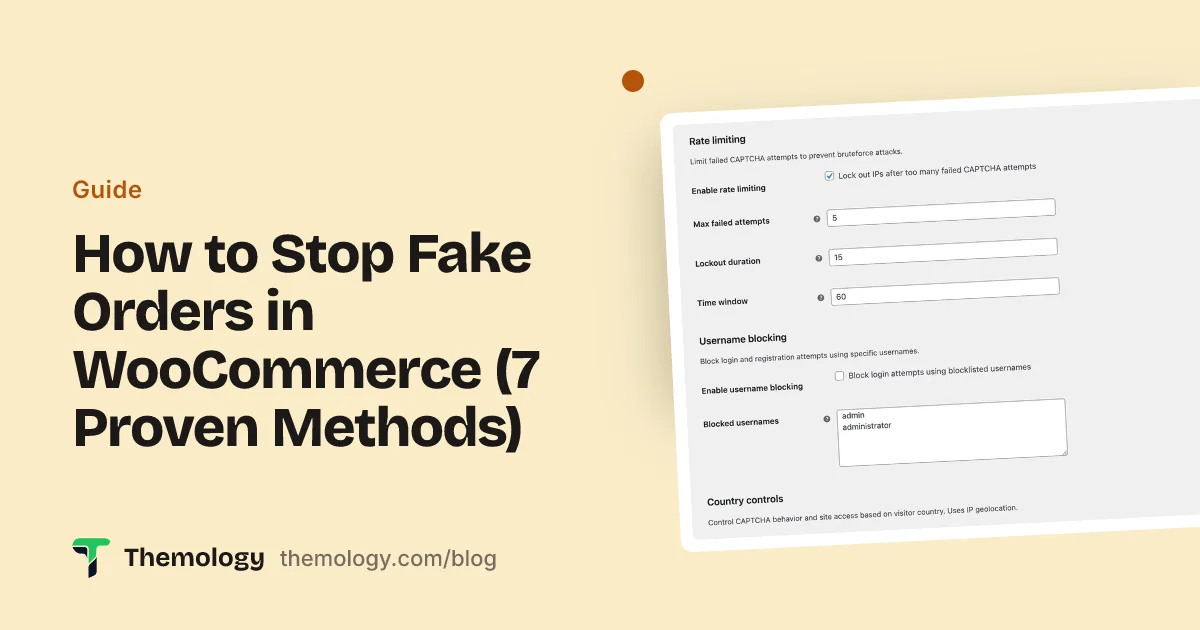
How to Stop Fake Orders in WooCommerce (7 Proven Methods)
How to stop fake orders in WooCommerce: spot a carding attack in your Failed orders, then block it with CAPTCHA, rate limiting, fraud scoring and 3D Secure.
Read more →