
WooCommerce Security Checklist 2026 (What Actually Matters)
Most WooCommerce security guides rehash generic WordPress tips. This checklist covers what actually matters: checkout bot protection, REST API lockdown, and HPOS.

Search “WooCommerce security” and you’ll find dozens of guides telling you to change your database prefix, rename wp-login.php, and hide your WordPress version number. That’s WordPress security advice with a WooCommerce label slapped on top.
WooCommerce stores are different. You’re processing payments. You’re storing customer addresses, emails, and order histories. Your checkout page is a live target for carding bots. Your REST API exposes product and order endpoints by default. Block Checkout runs React on the frontend, which changes how form-level protections work. HPOS restructured how order data is stored. None of the generic WordPress checklists address any of this.
We build WooCommerce plugins, so we deal with checkout security, payment gateway compatibility, and store hardening daily. This checklist skips the WordPress basics you’ve read a hundred times and focuses on what actually matters for WooCommerce stores in 2026.
Why WooCommerce security is its own problem#
WordPress security and WooCommerce security overlap, but they’re not the same thing. A WordPress blog needs protection against brute force login attacks and malware. A WooCommerce store needs all of that, plus protection for payment flows, customer data, and API endpoints that blogs don’t have.
Here’s what makes WooCommerce stores a unique target:
Payment data attracts a different class of attacker. Blog hackers want to inject SEO spam or redirect traffic. WooCommerce attackers want to test stolen credit cards, skim payment details, or extract customer PII. The stakes and sophistication are higher.
Checkout is a live attack surface. Block Checkout is React-based, which means traditional PHP form hooks don’t work the same way. Express payments (Apple Pay, Google Pay, Amazon Pay) run their own JavaScript flows. WooCommerce PayPal Payments has its own built-in reCAPTCHA. Each of these introduces compatibility and security considerations that generic WordPress guides don’t cover.
The REST API exposes store data by default. WooCommerce registers dozens of API endpoints for products, orders, customers, coupons, and more. If you visit yourstore.com/wp-json/wc/v3/products on a default installation, you might be surprised by what’s publicly accessible. Attackers use these endpoints for reconnaissance.
Cart fragments are a DDoS vector. WooCommerce’s cart fragment AJAX requests (?wc-ajax=get_refreshed_fragments) bypass page caching and hit your server on every page load. Bots can hammer this endpoint to overwhelm your server without triggering standard DDoS protection. If this sounds familiar, our guide on why most WooCommerce stores feel slow explains the performance side of this problem.
AI-powered carding is a 2026 reality. Generative AI now creates synthetic identities with realistic names, matching addresses, and human-like checkout behavior. Traditional CAPTCHA still blocks basic bots, but stopping AI-generated fraud requires layered defenses. We covered this in detail in our guide to stopping fake orders.
The checklist#
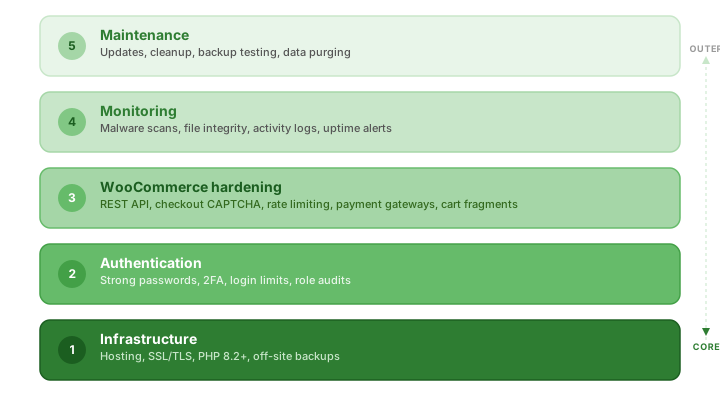
This is organized by priority. Start at the top and work down. The first two sections are foundational; skip them and everything else is built on sand.
Infrastructure#
These aren’t exciting. They’re also non-negotiable.
Use hosting with server-level isolation. Shared hosting means your store shares a server with hundreds of other sites. If one of them gets compromised, your store is at risk through cross-site contamination. Managed WordPress hosts like Pressable, Cloudways, or Kinsta provide container-based isolation where each site runs in its own environment. If your host doesn’t mention isolation, it’s probably shared.
Verify your SSL/TLS certificate is active and auto-renewing. Every page on your store should load over HTTPS, not just checkout. Check for mixed content warnings where some resources (images, scripts) load over HTTP. Most hosts include free SSL via Let’s Encrypt with auto-renewal. If you’re managing certificates manually, set a calendar reminder for renewal dates. An expired certificate will trigger browser warnings that kill trust instantly. Once SSL is active, enable WooCommerce’s “Force Secure Checkout” under WooCommerce > Settings > Advanced to ensure checkout always runs over HTTPS, even if a misconfigured link tries to load it over HTTP.
Run PHP 8.1 or higher. WooCommerce 9.x requires PHP 8.0 minimum, and 8.2+ is recommended for both security patches and performance. Older PHP versions stop receiving security updates entirely. Check your PHP version in Tools > Site Health > Info > Server in your WordPress dashboard. If your host doesn’t support PHP 8.2+, that’s a reason to switch.
Set up automatic backups with off-site storage. Your backup strategy needs to handle WooCommerce-specific data: orders, customer records, subscription data. A backup that saves files but misses database tables is useless for a store. Use a solution that stores backups off-site (cloud storage, not the same server) and supports point-in-time restoration. UpdraftPlus and Jetpack VaultPress Backup both handle WooCommerce data correctly. Test your backup by actually restoring it on a staging site. An untested backup isn’t a backup.
Authentication and access#
Enforce strong passwords for admin and shop manager accounts. This sounds obvious, but it’s still the most common vulnerability. WooCommerce adds the Shop Manager role, which has access to orders, customers, coupons, and settings. A compromised shop manager account is nearly as damaging as a compromised admin. Use a plugin like Password Policy Manager to enforce complexity requirements for privileged roles.
Enable two-factor authentication for all admin-level users. 2FA adds a second verification step (usually a time-based code from an authenticator app) after the password. Even if credentials are stolen through phishing, the attacker can’t get in without the physical device. Enforce it for Administrator and Shop Manager roles at minimum.
Several free plugins handle this well:
- WP 2FA (90,000+ installs) is the most popular dedicated option. It supports authenticator apps (Google Authenticator, Authy) and email-based codes. The key advantage for WooCommerce stores: it lets you enforce 2FA by user role, so you can require it for admins and shop managers without forcing it on customers. It also supports front-end 2FA setup, which matters if your shop managers don’t access the WordPress dashboard directly.
- Wordfence Login Security is a lightweight, free plugin from the Wordfence team that adds 2FA and CAPTCHA to your login page without installing the full Wordfence suite. Good if you want login hardening without a full security plugin.
- Two-Factor (100,000+ installs) is the official WordPress contributor plugin. Simple, no configuration overhead, but doesn’t enforce 2FA by role. Each user has to enable it themselves.
If you’re already using a general security plugin like Wordfence or Solid Security, both include 2FA in their free tiers. No need to add a separate plugin.
Limit login attempts. Brute force attacks use bots to try thousands of username/password combinations. Limiting failed login attempts per IP address stops these before they succeed. Wordfence, Solid Security, and Jetpack all include brute force protection. If you’re using Cloudflare, you can also set rate limiting rules on your login URL at the CDN level, which blocks attempts before they reach WordPress.
Audit user roles quarterly. WooCommerce stores accumulate user accounts over time: former employees, contractors, seasonal staff. Each unused account with elevated permissions is a liability. Review Users > All Users and remove or downgrade accounts that no longer need access. Apply the principle of least privilege: give each user the minimum permissions they need, nothing more. If your shop managers use shared devices or public computers, consider auto-logout for inactive sessions. Plugins like Inactive Logout handle this and reduce the risk of someone walking up to an unlocked admin session with access to orders and customer data.
WooCommerce-specific hardening#
This is where most security guides stop being useful, because they don’t cover WooCommerce at all. These steps address the attack surfaces that are unique to online stores.
Restrict the WooCommerce REST API. By default, some WooCommerce API endpoints are accessible without authentication. Attackers use them to enumerate products, probe for information, and identify store configurations. If you don’t use the API for external integrations (headless frontend, mobile app, third-party sync), restrict access entirely. You can do this with a security plugin or by adding authentication requirements in your theme’s functions.php. If you do use the API, ensure all keys use the minimum required permissions (read-only where possible) and rotate them regularly.
Protect checkout against bots. Add CAPTCHA or a honeypot to your checkout page, login form, and registration form. For WooCommerce in 2026, this means verifying compatibility with Block Checkout, express payments, and WooCommerce PayPal Payments’ own reCAPTCHA. We tested 7 options and compared them in detail in our WooCommerce CAPTCHA plugin comparison. The short version: Cloudflare Turnstile (free) works well for most stores. If you use PayPal Payments or need rate limiting built in, our Bouncer — reCAPTCHA & Fraud Protection for WooCommerce handles all five major CAPTCHA providers, includes built-in fraud scoring, rate limiting, IP blocklist, and geo-blocking, and works with Block Checkout and WooCommerce PayPal Payments out of the box.
Rate limit checkout submissions. CAPTCHA stops individual bot submissions. Rate limiting stops the volume. If someone submits 50 checkout attempts from the same IP in 10 minutes, that’s not a customer. Some CAPTCHA plugins include this. You can also set it up at the Cloudflare or server level for /?wc-ajax=checkout requests.
Monitor failed orders for card testing attacks. A sudden spike in “Failed” orders is often the first sign of a card testing attack — where bots test stolen credit cards in bulk on your checkout page to see which ones are still valid. Most attempts get declined, but the valid cards get sold or used for larger fraud elsewhere. Your store becomes the testing ground. Don’t ignore failed orders just because no money changed hands. Set up email notifications for unusual failure rates in your payment gateway dashboard (Stripe, PayPal, and WooPayments all support this). If you’re using WooPayments, check their specific guidance on card testing attacks for response steps.
Use a PCI-compliant payment gateway with built-in fraud protection. Never store card numbers on your server. Use a gateway that handles card data on their own PCI-compliant infrastructure and tokenizes card details so the actual numbers never touch your site.
Beyond PCI compliance, the major gateways now include real-time fraud detection that catches threats your store-level plugins can’t:
- WooPayments is built on Stripe’s infrastructure and includes Stripe Radar for real-time fraud scoring on every transaction. Radar uses machine learning trained on billions of transactions across the Stripe network to flag suspicious payments before they process. You can configure risk thresholds in WooPayments settings and set up custom rules (block transactions from specific countries, require 3D Secure above a certain amount). For most WooCommerce stores, WooPayments offers the strongest fraud protection out of the box because it combines Stripe’s detection with WooCommerce-native integration.
- Stripe for WooCommerce gives you direct access to Stripe’s dashboard with Radar, customizable fraud rules, and detailed risk analysis per transaction. If you need more granular control than WooPayments offers, the direct Stripe plugin gives you the full dashboard.
- PayPal includes its own fraud protection and Seller Protection program that covers eligible transactions against unauthorized payments and item-not-received claims. It also has built-in reCAPTCHA on its payment endpoints.
Whichever gateway you use, enable Address Verification System (AVS) and 3D Secure (SCA). AVS checks whether the billing address matches what the card issuer has on file. 3D Secure adds a bank-level verification step that bots can’t bypass. Both are configurable in your gateway’s settings.
Disable unused payment methods. Every active payment method is a potential entry point. If you don’t use Cash on Delivery, Bank Transfer, or Check Payments, disable them. COD in particular is a favorite for spam bots because it bypasses all payment verification.
Defer or disable cart fragments on non-cart pages. WooCommerce’s cart fragment AJAX request fires on every page load to update the cart icon. This bypasses page caching, hits your server directly, and can be abused by bots as a lightweight DDoS vector. Disable it on pages that don’t need it, or defer loading until user interaction. Performance plugins like WP Rocket and our own SpeedForge handle this automatically.
Monitoring and detection#
Security without monitoring is just hoping nothing goes wrong.
Run automated malware scans. Install a security plugin that scans your files, themes, and plugins for malware automatically. Wordfence (free tier scans core files, themes, and plugins against the WordPress.org repository) and Sucuri (remote and server-side scanning) are both solid choices. The key is automation. Manual scanning only happens when you remember to do it, which is never often enough.
Enable file integrity monitoring. This tracks changes to your site’s files and alerts you when something is modified unexpectedly. If an attacker injects a credit card skimmer into your checkout template, file integrity monitoring catches it. Wordfence includes this. So does the free Sucuri Security plugin.
Keep an activity log. Track who logs in, what they change, and when. This is critical for stores with multiple admin users. If a plugin gets deactivated, a user role gets changed, or a setting gets modified, you need to know who did it. WP Activity Log (free) or Jetpack’s activity log both work well. An activity log is also invaluable after a breach for understanding what happened and when.
Set up uptime monitoring. If your store goes down, you need to know immediately, not when a customer emails you. Free services like UptimeRobot or Better Stack ping your site every few minutes and send alerts via email, SMS, or Slack when it’s unreachable. Downtime can be a sign of a DDoS attack, a crashed plugin, or a compromised server.
Maintenance and hygiene#
The boring stuff that prevents most incidents.
Keep everything updated. WordPress core, WooCommerce, plugins, themes. This is the single most impactful security habit. Most WordPress vulnerabilities are caused by outdated plugins. Enable auto-updates for trusted plugins. For WooCommerce itself, test updates on staging first (checkout and payment flows can break with minor updates), then deploy to production. Our HPOS and Block Checkout guide covers the specific compatibility concerns when updating WooCommerce’s core features.
Remove unused plugins and themes. Every installed plugin is attack surface, even deactivated ones. Deactivated plugins can still be exploited if they have known vulnerabilities. If you’re not actively using it, uninstall it. The same applies to themes. Keep your active theme and one default theme (for troubleshooting) and remove the rest.
Purge old customer data you don’t need. GDPR (EU), CCPA (California), and similar regulations require you to handle customer data responsibly. Beyond compliance, stored data you don’t need is a liability. If you don’t need customer addresses from orders placed three years ago, delete them. WooCommerce has built-in tools for anonymizing old order data under WooCommerce > Settings > Accounts & Privacy.
Test your backups by restoring them. Having backups is pointless if they don’t work. At least once a quarter, restore a backup to a staging environment and verify that orders, customer data, products, and settings all come through correctly. This is the step everyone skips, and it’s the one that matters most when you actually need a backup.
Tools we recommend#
We don’t sell a security plugin, so these are genuine recommendations based on what we’ve seen work across WooCommerce stores.
Security plugins:
- Wordfence (free tier is excellent for malware scanning, firewall, and brute force protection)
- Sucuri Security (free plugin for file integrity and remote scanning; paid WAF service for enterprise needs)
- Solid Security (good all-around option with 2FA, file change detection, and login hardening)
Backup:
- UpdraftPlus (free with off-site storage; premium for scheduled and incremental backups)
- Jetpack VaultPress Backup (real-time backups with WooCommerce order data preservation)
Two-factor authentication:
- WP 2FA (role-based enforcement, front-end setup, WooCommerce-aware)
- Wordfence Login Security (lightweight 2FA + login CAPTCHA without the full Wordfence suite)
- Two-Factor (official WordPress plugin, simple per-user setup)
Payment gateways with fraud protection:
- WooPayments (Stripe Radar built in, WooCommerce-native, best out-of-the-box fraud protection)
- Stripe for WooCommerce (full Stripe dashboard access with customizable Radar rules)
- WooCommerce PayPal Payments (Seller Protection, built-in reCAPTCHA on payment endpoints)
CAPTCHA: See our full comparison of 7 WooCommerce CAPTCHA plugins for detailed testing results.
Firewall:
- Cloudflare free tier (DNS-level protection, Bot Fight Mode, basic WAF rules)
- Sucuri WAF (paid, but handles malware cleanup if you get hacked)
Monitoring:
- WP Activity Log (free activity tracking for user actions)
- UptimeRobot (free uptime monitoring with 5-minute checks)
Frequently asked questions#
Is WooCommerce secure out of the box?#
WooCommerce follows WordPress coding standards and receives regular security updates from its development team (backed by Automattic). The core plugin is well-maintained. But “secure out of the box” doesn’t mean “secure without configuration”. Default settings leave the REST API partially open, guest checkout enabled, and no form-level bot protection. You need to actively harden it.
Do I need a security plugin for WooCommerce?#
For most stores, yes. A security plugin automates tasks you’d otherwise forget: malware scanning, file integrity monitoring, brute force protection, and firewall rules. Wordfence’s free tier covers the essentials. You don’t need to pay for premium security unless you need advanced features like real-time threat intelligence, WAF, or priority malware cleanup.
How do I stop carding attacks on my WooCommerce checkout?#
Layer your defenses: CAPTCHA on checkout to block basic bots, rate limiting to prevent volume attacks, anti-fraud scoring to catch sophisticated attempts, and 3D Secure on your payment gateway for card-level verification. We wrote a detailed guide on how to stop fake orders in WooCommerce that covers each method step by step.
Is WooCommerce PCI compliant?#
WooCommerce itself doesn’t store credit card data when you use a tokenized payment gateway (Stripe, PayPal, WooPayments). The card numbers are processed and stored on the gateway’s PCI-compliant servers, never on yours. What your site stores are tokens — unique strings that only work for that specific customer, your specific store, and your specific payment processor. Even if someone stole the tokens from your database, they’d be useless anywhere else. This significantly reduces your PCI scope, but PCI-DSS still applies to your store because you serve the checkout page where card data is entered. You’re responsible for securing that environment: SSL, access controls, and server security. WooCommerce has a detailed guide on PCI-DSS compliance that covers exactly what’s required at each level.
Which WooCommerce payment gateway has the best fraud protection?#
WooPayments has the strongest out-of-the-box fraud protection for most stores because it runs on Stripe’s infrastructure with Radar enabled by default. Radar scores every transaction using machine learning trained on billions of payments, and you can customize risk thresholds and blocking rules directly from WooCommerce settings. If you need more granular control, the direct Stripe plugin gives you the full Stripe dashboard with advanced Radar rules.
PayPal has its own fraud filters plus Seller Protection for eligible disputes. For maximum coverage, many stores run WooPayments (or Stripe) as the primary gateway and PayPal as a secondary option, getting fraud protection from both networks.
How often should I update WooCommerce?#
Apply security patches immediately. For feature updates, test on staging first and deploy within a week. WooCommerce updates can occasionally change checkout behavior, payment gateway hooks, or REST API endpoints. Running updates on staging first lets you catch compatibility issues before they affect real customers. Enable auto-updates for WordPress core and security-only plugin updates. For WooCommerce and plugins that affect checkout, test first.
The bottom line#
Most WooCommerce security advice is really WordPress security advice that ignores everything unique about running a store: payment processing, checkout bot attacks, REST API exposure, and customer data obligations. The generic stuff (strong passwords, update your plugins) matters, but it’s table stakes.
Start with infrastructure: good hosting, SSL, current PHP, working backups. Then lock down authentication with 2FA and login limits. Then harden the WooCommerce-specific surfaces: REST API, checkout bot protection, payment gateway settings, cart fragments. Add monitoring so you know when something goes wrong. And maintain it all with regular updates, cleanups, and backup testing.
If checkout spam and carding attacks are your most pressing concern, our CAPTCHA comparison breaks down which plugins actually work with Block Checkout, HPOS, and WooCommerce PayPal Payments in 2026. For a hands-on setup walkthrough, see how to add CAPTCHA to WooCommerce checkout.
Plugins we built for this
We didn't just write about it. We built something for each.
Bouncer - reCAPTCHA & Fraud Protection for WooCommerce
Stop spam orders, carding attacks, and fraudulent checkouts. 5 CAPTCHA providers, fraud scoring, geo-blocking, and PayPal Payments compatibility.
Get the plugin →SpeedForge
Free WordPress speed plugin with page caching, Critical CSS, JS defer/delay, WebP/AVIF conversion, and WooCommerce optimizations. No API keys or cloud fees.
Download free →Keep reading

How to Add CAPTCHA to WooCommerce Checkout (Without Breaking Payments)
Most CAPTCHA tutorials skip the hard parts: Block Checkout compatibility, PayPal double verification, and Apple Pay conflicts. This guide covers setup for 4 CAPTCHA providers with the gotchas that break real stores.
Read more →
How to Stop Fake Orders in WooCommerce (7 Proven Methods)
Fake orders drain your time, trigger chargebacks, and mess up analytics. Here are 7 ways to stop spam bots and carding attacks on your WooCommerce store.
Read more →
Raffle for WooCommerce 1.0.3: Bug Fix to Full Security Audit
One user email kicked off a full security audit of Raffle for WooCommerce. Version 1.0.3 fixes race conditions, rebuilds gift checkout, and adds admin emails.
Read more →