Adding CAPTCHA to your WooCommerce checkout sounds straightforward. Pick a plugin, enter API keys, done. Except it's 2026 and WooCommerce checkout has three layers of complexity that most CAPTCHA tutorials completely ignore.
First, Block Checkout is the default. It's React-based and talks to a Store API endpoint, not a traditional PHP form. CAPTCHA plugins that hook into woocommerce_checkout_process do nothing on Block Checkout because that hook never fires.
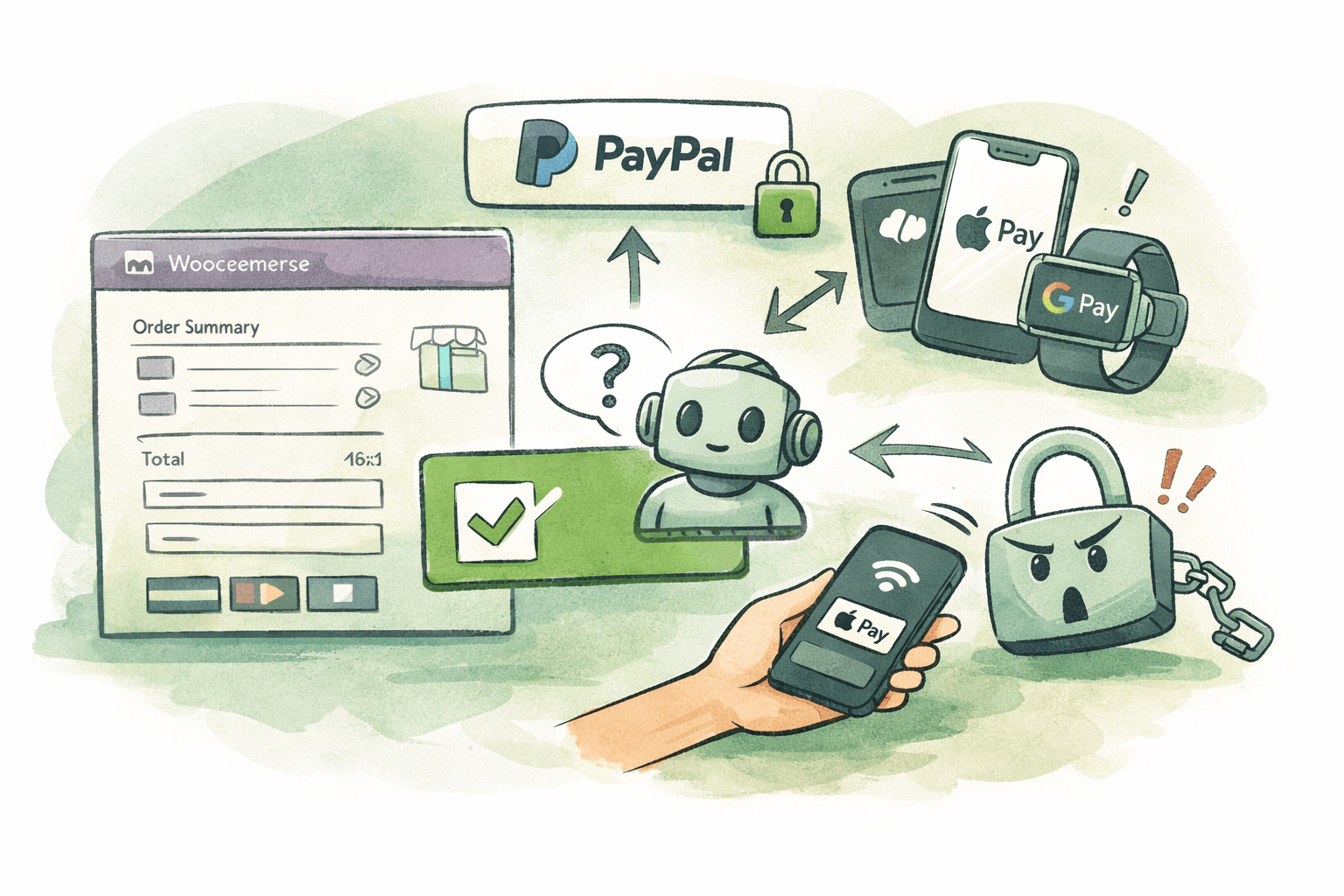
Second, WooCommerce PayPal Payments now has its own built-in reCAPTCHA. If your CAPTCHA plugin also runs on checkout, you get double verification. That breaks the payment flow for every PayPal customer.
Third, express payment methods (Apple Pay, Google Pay, Amazon Pay) open native wallet interfaces that bypass the checkout form entirely. A CAPTCHA widget sitting on your checkout page has no effect on these flows.
We build WooCommerce plugins and deal with checkout compatibility constantly. This guide covers the actual setup process for four CAPTCHA providers, with the specific gotchas that break real stores.
Before you install anything: three compatibility checks
These take five minutes and save hours of debugging.
1. Check your checkout type
Go to your checkout page and look at the page editor. If you see a "Checkout" block in the block editor, you're on Block Checkout. If you see [woocommerce_checkout] as a shortcode, you're on Classic Checkout.
This matters because not every CAPTCHA plugin supports both. Some plugins only inject CAPTCHA on Classic Checkout and silently do nothing on Block Checkout, leaving your store unprotected without any warning.
WooCommerce has been shipping Block Checkout as the default since version 8.3 (August 2023). If you created your store after that date and didn't change the checkout page, you're almost certainly on Block Checkout.
2. Check for PayPal Payments reCAPTCHA
If you use the official WooCommerce PayPal Payments plugin, it may already have its own CAPTCHA. Check at WooCommerce > Settings > Integration > WooCommerce PayPal Payments CAPTCHA.
If it's enabled and configured with Google reCAPTCHA keys, your PayPal payment methods already have bot protection. Adding a separate CAPTCHA on top creates a double-verification problem: both CAPTCHA systems try to validate the same form submission, and one of them usually fails.
The WooCommerce PayPal Payments documentation on fraud prevention explains their reCAPTCHA integration. It uses a layered approach: reCAPTCHA v3 runs invisibly, and if the score is too low, reCAPTCHA v2 shows a visible challenge.
What to do: If PayPal reCAPTCHA is active, you need a CAPTCHA solution that detects this and skips verification for PayPal methods while still protecting other gateways (Stripe, bank transfers, etc.).
3. Check which express payment methods you use
Express payments like Apple Pay, Google Pay, and Amazon Pay use their own wallet authentication (Face ID, Touch ID, device PIN). They bypass the checkout form and submit directly through the Store API. A CAPTCHA widget on the checkout form has no effect on these flows, and trying to force CAPTCHA verification on them will break the wallet experience.
This isn't a problem you need to solve. It's a problem your CAPTCHA plugin needs to handle automatically. Express payment methods already have strong fraud protection built into the wallet layer. Your CAPTCHA should detect these methods and skip gracefully.
Which CAPTCHA provider to choose
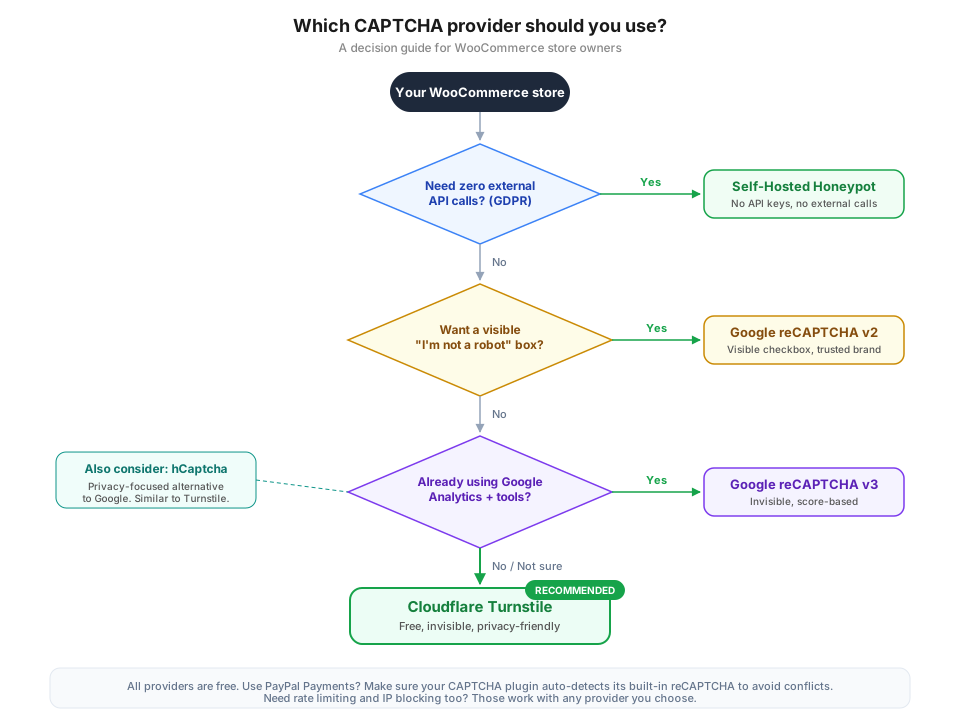
There are five practical options for WooCommerce checkout. Each has trade-offs.
| Provider | Visibility | User friction | External service | API keys | Best for |
|---|---|---|---|---|---|
| Cloudflare Turnstile | Usually invisible | Very low | Cloudflare | Yes (free) | Most stores |
| Google reCAPTCHA v3 | Invisible | None | Yes (free) | Google ecosystem stores | |
| Google reCAPTCHA v2 | Visible checkbox | Medium | Yes (free) | Visible verification | |
| hCaptcha | Invisible or challenge | Low to medium | hCaptcha | Yes (free) | Privacy-focused stores |
| Honeypot | Invisible | None | None | No | GDPR-strict, no external calls |
If you're in the EU and want zero external data transfers, go with a honeypot approach. No API calls, no cookies, no data leaving your server.
If you want visible confirmation that protection is active (some store owners like the psychological deterrent), reCAPTCHA v2 is the most recognized.
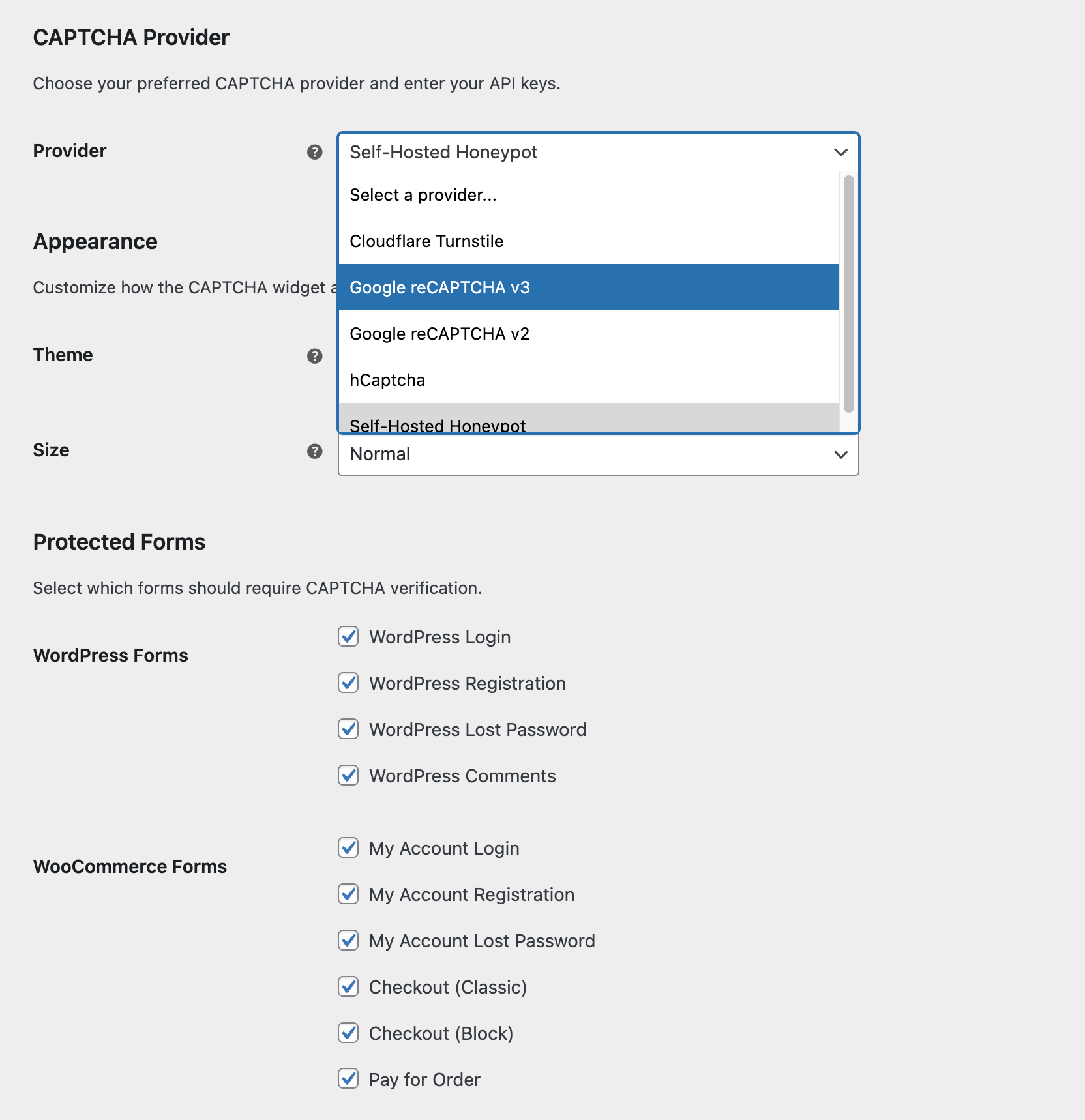
A good WooCommerce CAPTCHA plugin gives you all five providers in a single dropdown, so you can switch without reinstalling anything.
Setup: Cloudflare Turnstile
Get your API keys
- Go to dash.cloudflare.com/turnstile. You need a free Cloudflare account, but your site doesn't need to be proxied through Cloudflare.
- Click Add widget.
- Enter a name (your store name) and add your domain.
- Select Managed mode. This lets Cloudflare decide when to show the widget and when to run invisible challenges.
- Copy the Site Key and Secret Key.
Install a CAPTCHA plugin
You need a WooCommerce CAPTCHA plugin that supports Turnstile. Options include:
- Simple Cloudflare Turnstile: free, Turnstile-only, works with WooCommerce forms including Block Checkout.
- reCaptcha for WooCommerce: supports all five providers, includes rate limiting, auto-detects PayPal reCAPTCHA conflicts (full disclosure: this is our plugin).
- reCaptcha Integration for WooCommerce: WooCommerce marketplace plugin, supports Turnstile as of 2026.
Configure
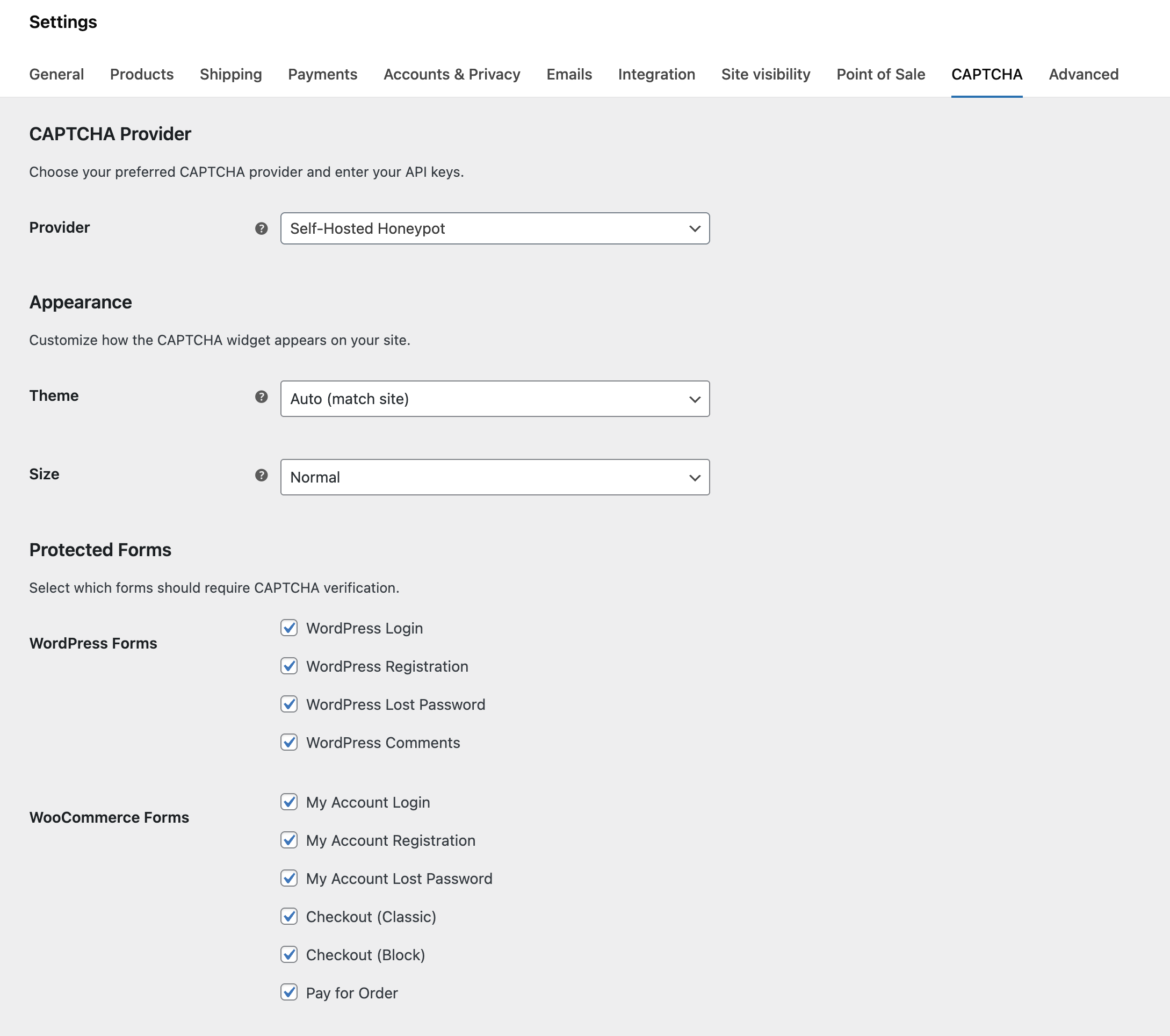
- Go to the plugin's settings (typically WooCommerce > Settings > CAPTCHA or similar).
- Select Cloudflare Turnstile as the provider.
- Paste your Site Key and Secret Key.
- Enable protection on Checkout (both Classic and Block if the plugin supports it).
- Save settings.
Test
- Open your checkout in a private browser window (not logged in as admin).
- Add a product to cart and proceed to checkout.
- You may see a brief Turnstile widget appear and resolve itself, or nothing visible at all.
- Complete the order. If payment goes through, Turnstile is working.
www vs non-www).
Setup: Google reCAPTCHA v3
Get your API keys
- Go to google.com/recaptcha/admin/create.
- Enter a label (anything descriptive).
- Select reCAPTCHA v3 (not v2).
- Add your domain(s). Include both
wwwand non-wwwif applicable. - Accept the terms and click Submit.
- Copy the Site Key and Secret Key.
Configure
- In your CAPTCHA plugin settings, select Google reCAPTCHA v3.
- Paste both keys.
- Set the score threshold to 0.5 (balanced starting point).
- Enable checkout protection.
- Save.
Tuning the score threshold
reCAPTCHA v3 assigns every visitor a score from 0.0 (definitely a bot) to 1.0 (definitely human). The threshold is the minimum score required to pass.
- 0.3: Permissive. Lets most traffic through. Some bots may pass.
- 0.5: Default. Good balance for most stores.
- 0.7: Strict. May block users on VPNs, corporate networks, or Tor.
Setup: hCaptcha
Get your API keys
- Go to dashboard.hcaptcha.com/signup.
- Create an account and add your site.
- Copy the Site Key (UUID format, looks like
a1b2c3d4-e5f6-...). - Copy the Secret Key from your account settings.
Configure
- Select hCaptcha in your CAPTCHA plugin.
- Paste both keys.
- Enable checkout protection.
- Save.
Setup: Honeypot (no API keys needed)
A honeypot adds hidden fields to your forms that humans never see but bots fill out. When a bot completes the hidden fields, the submission is rejected.
Modern honeypot implementations go beyond a single hidden field. A well-built honeypot uses multiple layers: JavaScript-injected fields (catches bots that don't execute JS), time-based detection (forms submitted in under 3 seconds are almost certainly automated), nonce protection (prevents replay attacks), and math challenges solved by the browser.
To set up a honeypot, choose a CAPTCHA plugin that includes one (like Captcha for WooCommerce which has a 7-layer honeypot) or install a dedicated honeypot plugin. No external API keys are needed.
Limitation: Honeypots are less effective against sophisticated bots that execute JavaScript and wait before submitting. For high-risk stores under active carding attacks, combine a honeypot with rate limiting or use an external CAPTCHA provider as your primary defense.
The PayPal Payments reCAPTCHA conflict (and how to handle it)
This is the most common reason CAPTCHA breaks WooCommerce checkout, and most tutorials don't mention it.
The problem
WooCommerce PayPal Payments loads the PayPal button inside a PayPal-owned iframe. When a customer clicks the PayPal button, the entire payment flow runs inside PayPal's domain. Your checkout page's CAPTCHA cannot reach inside that iframe.
If your CAPTCHA plugin tries to verify the form submission that PayPal triggers, the verification fails because the CAPTCHA token is stale, invalid, or never generated for that specific flow. The customer sees a generic "CAPTCHA verification failed" error and can't pay.
Meanwhile, PayPal Payments has its own reCAPTCHA that runs specifically on its endpoints. If both systems are active, one of them fails.
The fix
Option A: Use a CAPTCHA plugin that auto-detects PayPal's reCAPTCHA. Captcha for WooCommerce checks the woocommerce_ppcp-recaptcha_settings option and automatically skips CAPTCHA for PayPal methods while continuing to protect Stripe, bank transfers, and other gateways.
Option B: Manually disable your CAPTCHA plugin's checkout protection and rely entirely on PayPal's built-in reCAPTCHA. The downside is that non-PayPal payment methods lose CAPTCHA protection.
Option C: Disable PayPal Payments' built-in reCAPTCHA (WooCommerce > Settings > Integration > WooCommerce PayPal Payments CAPTCHA) and use your CAPTCHA plugin instead. This works if your CAPTCHA plugin properly handles the iframe flow, but most don't.
Option A is the cleanest solution because it protects all payment methods without conflicts.
Testing that CAPTCHA actually works
Adding CAPTCHA and assuming it works is a common mistake. Here's how to verify:
Basic test
- Log out (or use a private browser window).
- Add a product to cart and go to checkout.
- Fill out the form and complete an order.
- If the order goes through, CAPTCHA allowed a legitimate submission. Good.
Block Checkout test
If you're on Block Checkout, the test above covers it. But also check:
- Open browser developer tools (F12) and go to the Network tab.
- Complete an order and look for the
POSTrequest to/wc/store/v1/checkout. - Click the request and check the Request Payload.
- Look for an
extensionskey. Your CAPTCHA plugin should be sending its token there.
extensions key is empty or your plugin's namespace isn't present, the CAPTCHA isn't integrated with Block Checkout, even if a widget appears on the page.
PayPal test
- Select PayPal as your payment method.
- Complete the PayPal flow.
- If the order completes without CAPTCHA errors, the PayPal auto-detection is working.
- Switch to a non-PayPal method (Stripe, COD) and complete another order. CAPTCHA should still verify.
Express payment test
- If you have Apple Pay or Google Pay enabled, use them to complete a test order.
- Express payments should complete without CAPTCHA interference.
Common mistakes that break checkout
Running two CAPTCHA plugins
This is more common than you'd think. A security plugin (Wordfence, iThemes Security) may have its own CAPTCHA on login forms. Running that alongside a WooCommerce CAPTCHA plugin on the same form creates conflicts. Pick one and disable the other's CAPTCHA on overlapping forms.
Caching stale CAPTCHA tokens
CAPTCHA tokens are time-sensitive. If your page caching plugin serves a cached checkout page, the CAPTCHA token embedded in the HTML is stale and verification fails for every visitor.
Fix: Exclude your checkout and My Account pages from page caching. Most caching plugins do this automatically for WooCommerce, but check your settings if you see consistent CAPTCHA failures.
Forgetting to protect Block Checkout separately
Some plugins have separate settings for "Classic Checkout" and "Block Checkout." If you only enable Classic and your store uses Block Checkout, there's no protection. Enable both.
Setting reCAPTCHA v3 threshold too high
A threshold of 0.7 or higher blocks real users on VPNs, corporate networks, shared WiFi, and privacy browsers. Start at 0.5 and adjust based on actual data, not fear.
Beyond CAPTCHA: rate limiting
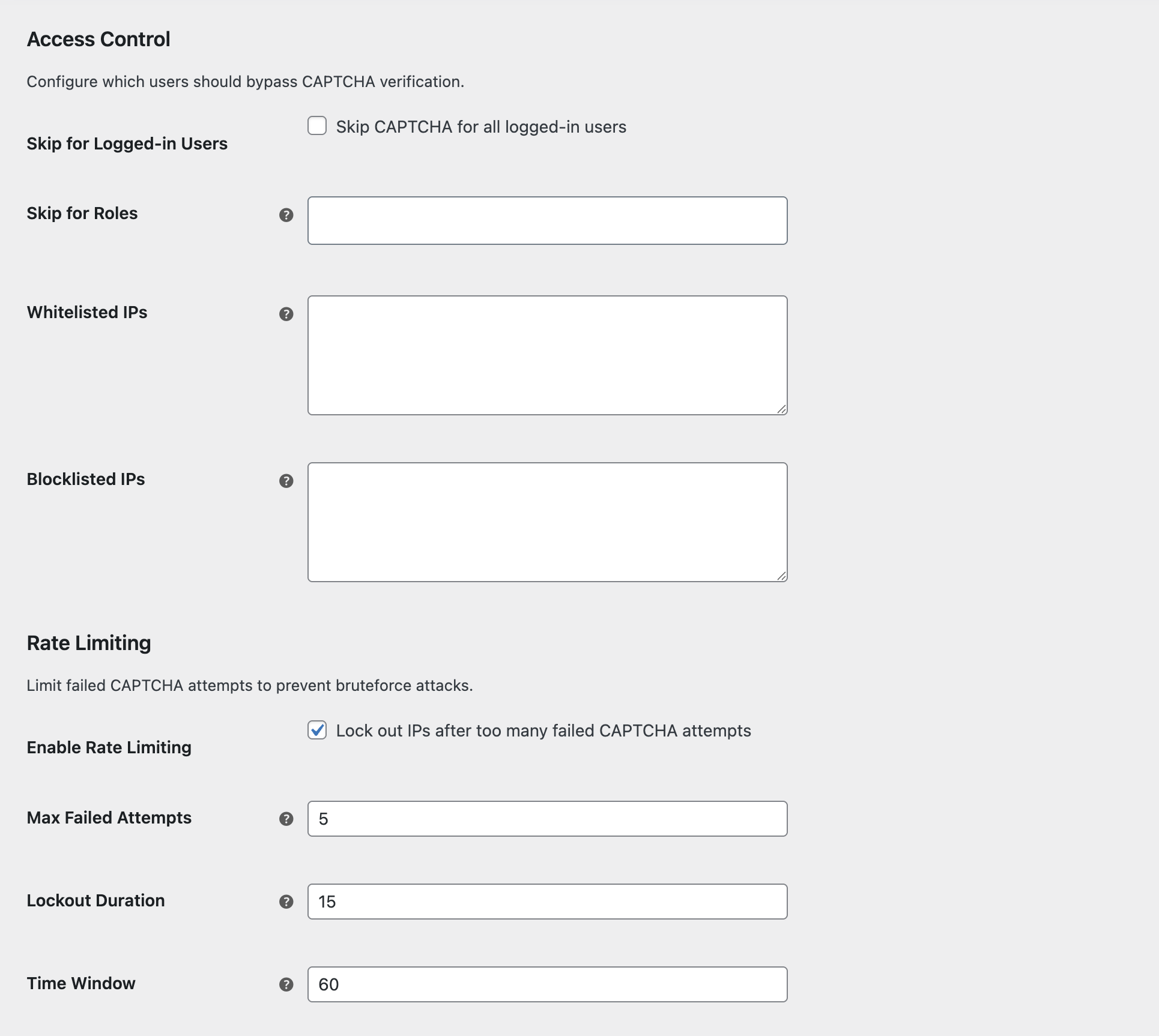
CAPTCHA stops bots at the form level. Rate limiting stops them at the IP level. The combination is stronger than either alone.
Rate limiting tracks failed CAPTCHA attempts per IP address. After a configurable number of failures (typically 3-5), the IP is temporarily locked out. This means a bot that somehow passes CAPTCHA occasionally still gets caught after repeated failures.
If your CAPTCHA plugin includes rate limiting (like reCaptcha for WooCommerce), enable it. If not, consider a server-level solution like Cloudflare rate limiting rules or a WordPress security plugin with IP lockout features.
For a deeper dive on anti-spam strategies beyond CAPTCHA, see our guide on how to stop fake orders in WooCommerce.
Frequently asked questions
Does CAPTCHA hurt checkout conversion rates?
It depends on the provider. Invisible CAPTCHA (Turnstile, reCAPTCHA v3, honeypot) adds no friction. Users don't see or interact with anything. A 2024 study by Baymard Institute found that security concerns are the fourth most common reason for cart abandonment. A visible CAPTCHA badge can actually increase trust for some audiences.
Visible CAPTCHA (reCAPTCHA v2) adds one click. The conversion impact is typically under 1% for stores that aren't targeting demographics with limited technical comfort.
Can I use CAPTCHA on checkout and still support guest checkout?
Yes. CAPTCHA protects the form submission, not the account creation. Guest customers fill out the checkout form and complete CAPTCHA just like logged-in customers. Some CAPTCHA plugins let you skip verification for logged-in users, reducing friction for returning customers.
My CAPTCHA plugin says it supports WooCommerce. Does that mean Block Checkout?
Not necessarily. "WooCommerce support" often means "Classic Checkout support." Block Checkout requires a fundamentally different integration approach (Store API extension vs PHP hooks). Check whether the plugin specifically mentions "Block Checkout" or "Checkout Block" support. If the documentation only shows screenshots of Classic Checkout, assume it doesn't work with Block Checkout.
Does Cloudflare Turnstile require my site to be on Cloudflare?
No. You need a free Cloudflare account to get API keys, but your site's DNS doesn't need to be on Cloudflare. Turnstile works on any domain.
Which CAPTCHA provider is most GDPR-compliant?
A self-hosted honeypot, since no data leaves your server. Among external providers, Cloudflare Turnstile and hCaptcha both have strong privacy positions and published GDPR compliance documentation. Google reCAPTCHA is the least privacy-friendly option because it sends data to Google servers.
How do I know if my store is under a carding attack?
Check for these signs: a sudden spike in failed orders (especially small amounts like $0.50-$5.00), multiple orders from the same IP in minutes, orders with obviously fake billing information, and payment processor warnings about unusual activity. Our WooCommerce security checklist covers detection and response in detail.
Should I add CAPTCHA to forms beyond checkout?
Start with checkout (the highest-risk target), then add login and registration. These three cover the most common attack vectors. Comment protection is useful if you have a blog with open comments. See our complete guide to which forms to protect for the full breakdown.
The bottom line
WooCommerce checkout in 2026 has three compatibility landmines for CAPTCHA: Block Checkout, PayPal Payments reCAPTCHA, and express payment methods. Most CAPTCHA tutorials skip all three because they were written for Classic Checkout before PayPal added its own reCAPTCHA.
If you want a quick, reliable setup: install Simple Cloudflare Turnstile (free, works with Block Checkout) and you're covered for basic protection.
If you need wider coverage (rate limiting, IP blocking, PayPal auto-detection, multiple providers), reCaptcha for WooCommerce handles all of it in one plugin. Full disclosure: we built it specifically because the existing options kept breaking on our own test stores.
For the broader picture of WooCommerce store security, our security checklist covers everything from checkout protection to REST API lockdown. And if you want to compare CAPTCHA plugins side-by-side, we tested 7 of them on a store with Block Checkout, HPOS, and PayPal Payments enabled.